
Jobs
Jobs let you tell an agent to do the same task for you on a schedule.
Instead of sending the same prompt every day or every week, you can save that work as a job, choose when it should run, and decide who should be notified after each run.
Jobs are useful for recurring work such as:
- A weekday market and competitor brief for leadership
- A nightly data quality or sync check for operations
- A morning support summary for the customer success team
- A weekly compliance or policy monitoring update
What a Job Includes
Each job usually has a few core parts:
- An agent that will perform the task
- A prompt that explains what the agent should do each time
- Optional tools or files that give the agent the right context
- A schedule for when the job should run
- Notification settings so the right people know when it is done
In simple terms, a job is a saved, repeatable instruction for an agent.
Example: Weekday Market Intelligence Brief
Let us take a realistic business example.
Assume your sales leadership team wants a short market intelligence brief every weekday morning before standup. The brief should scan industry developments, competitor announcements, and notable customer signals, then summarize only what matters to your team.
You could create a job with a prompt like this:
Review the latest industry news, competitor announcements, and major customer-relevant updates for our market. Summarize the top developments, explain why they matter for our business, and end with 3 recommended talking points for the sales leadership team. Keep the response concise and executive-friendly.
This is a good job because it is:
- Repetitive
- Time-sensitive
- Valuable to multiple people
- Better when delivered consistently
Create a Job
Open the jobs from the sidebar
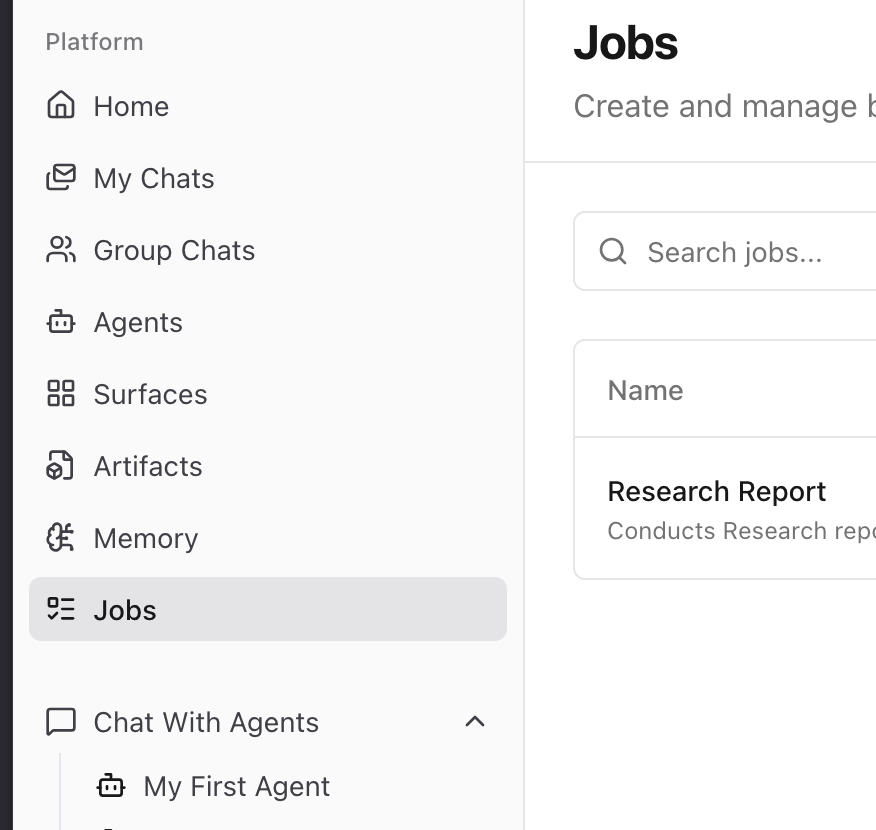
This is where you manage, create or edit all your jobs.
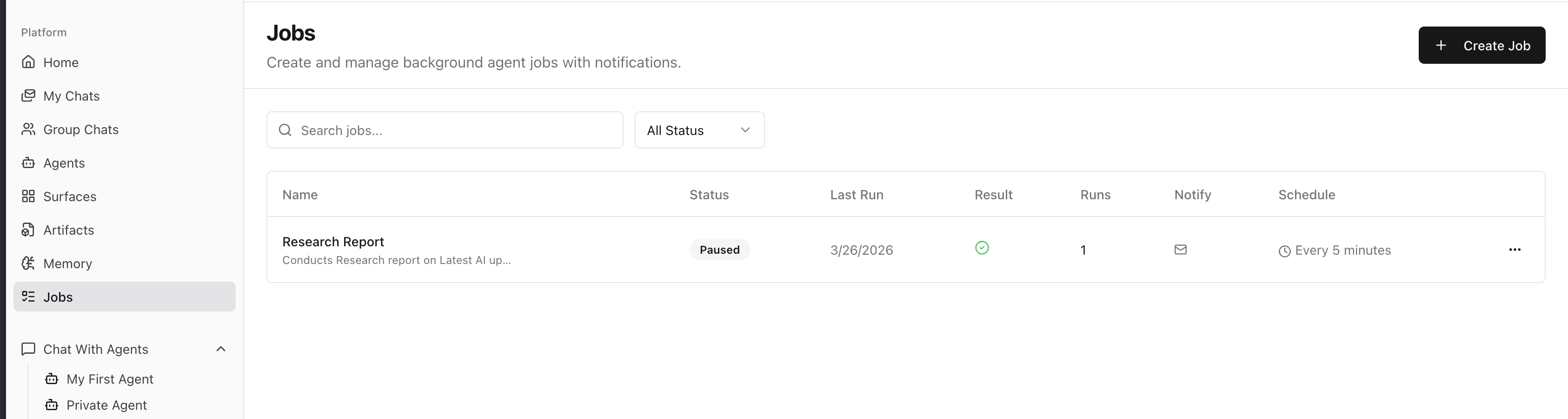
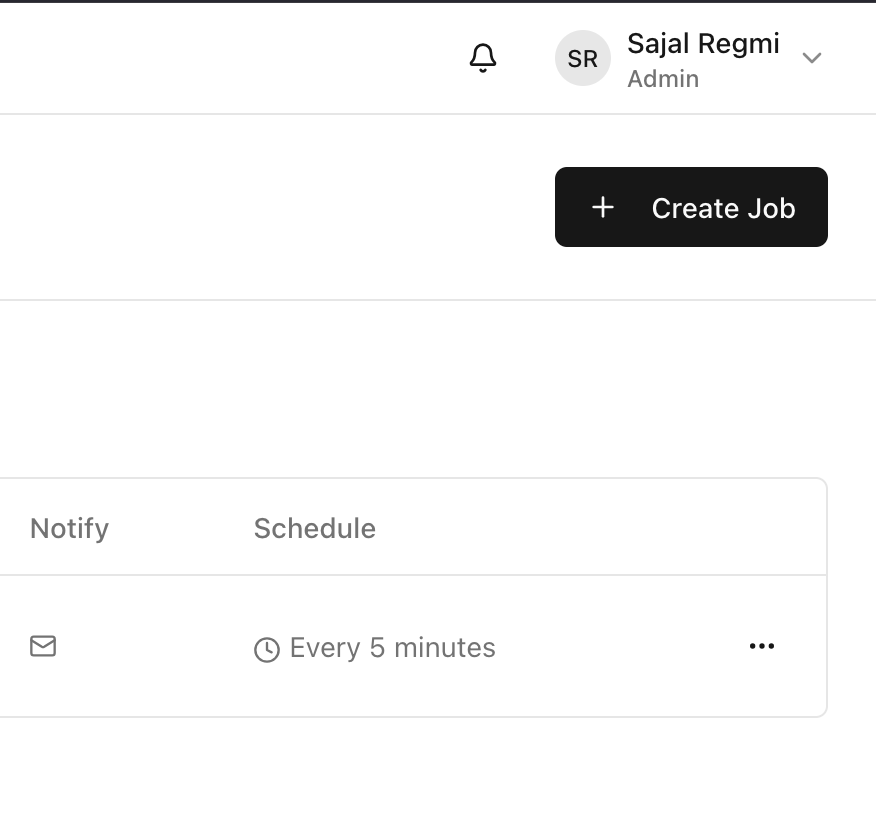
Let's Create a new job to walk through the process. To create a new job, click on Create button at the top right corner of the jobs dashboard.
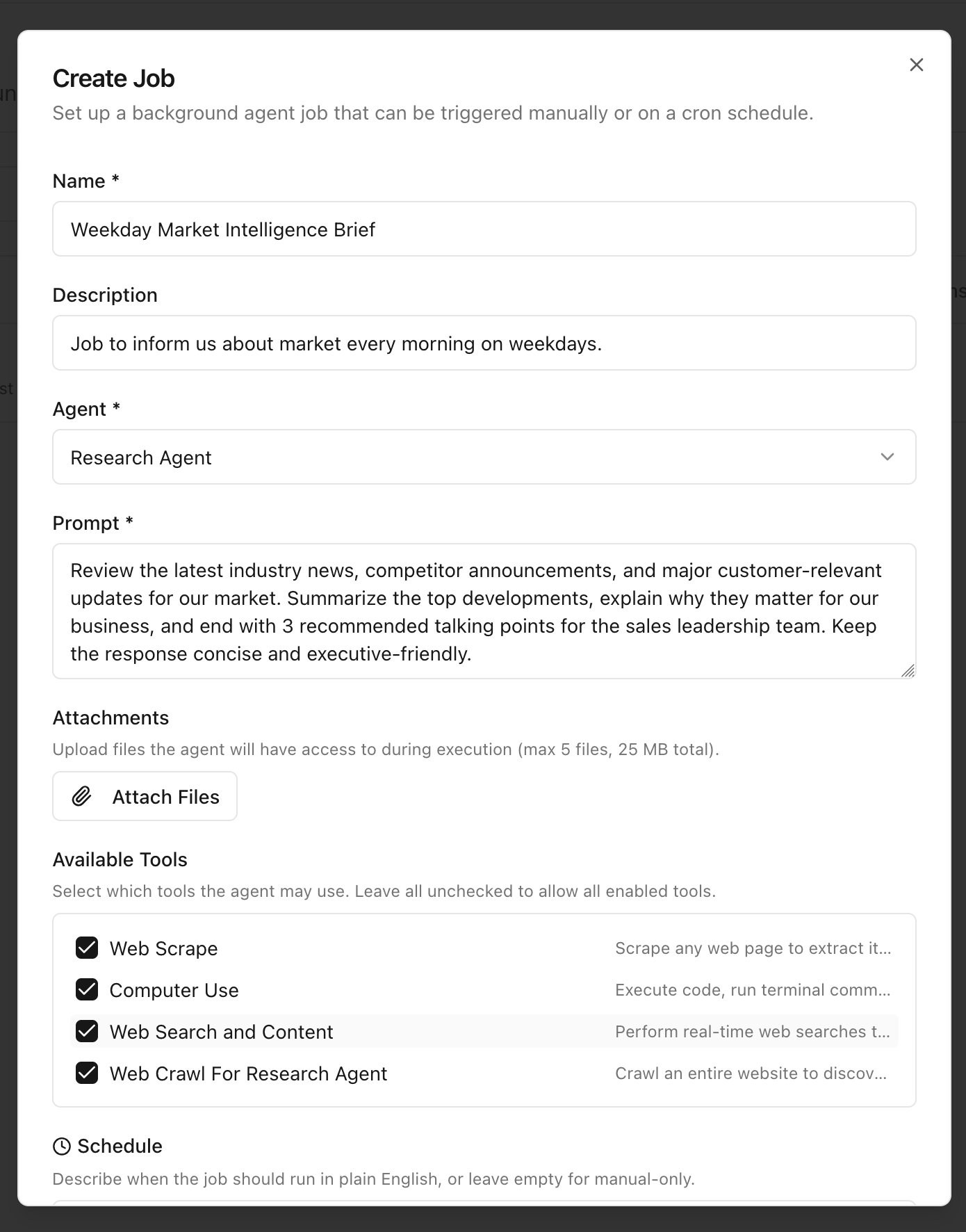
After that a form should appear.
From there, you will typically:
- Give the job a clear name.
- Choose the agent that should run it.
- Add the prompt the agent should follow.
- Attach any tools or supporting files if needed.
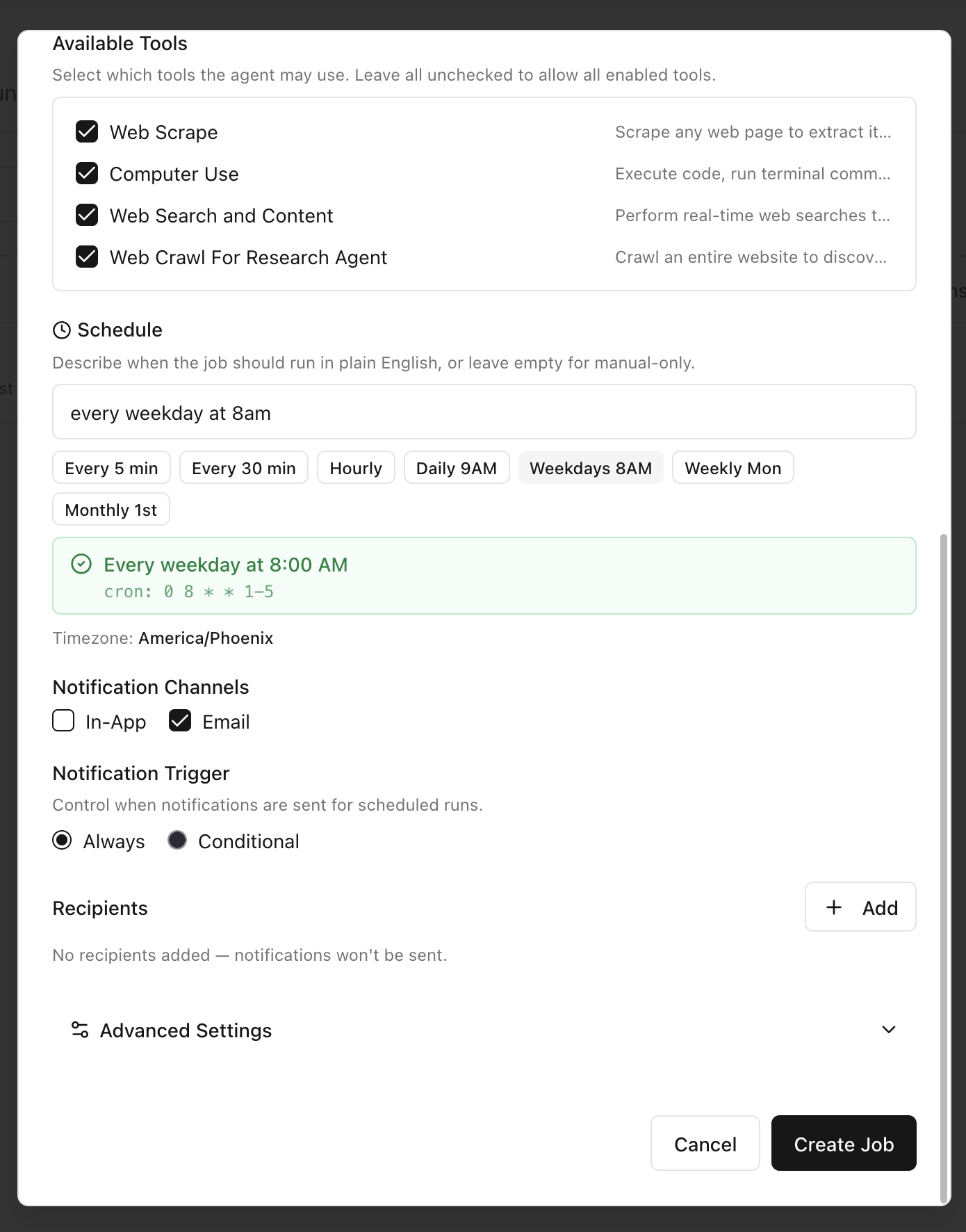
- Set the schedule.
- Choose who should be notified.
- Save the job.
For our example, a strong job name could be:
Weekday Market Intelligence Brief
Writing a Good Job Prompt
The prompt matters because the agent will reuse it every time the job runs.
When writing a prompt for a recurring job:
- Be specific about the outcome you want
- Define the audience for the result
- Tell the agent what to focus on and what to ignore
- Ask for a consistent structure so repeated runs stay easy to review
For example, you might ask the agent to always return:
- A short headline summary
- The top 3 to 5 updates
- Business impact for each update
- Recommended actions or talking points
That makes the output more reliable from run to run.
Set the Schedule
After the prompt is ready, set when the job should run.
This is what turns a one-time request into an ongoing workflow.
For the market intelligence example, you might schedule it for every weekday at 7:30 AM so the leadership team has the update before the day begins.
Other common scheduling patterns include:
- Every night for operational checks
- Every Monday morning for weekly summaries
- Every month for recurring reviews or reports
Choose a schedule that matches when the result becomes useful, not just when it is convenient to create.
Configure Notifications
Once the job finishes, Arkios Enterprise can notify the people who should see the result.
Depending on how your workspace is configured, you can notify through:
- In-app notifications
- Email notifications
You can also choose the right recipients for the job, such as:
- Yourself
- A specific teammate
- A team
- A broader enterprise-level audience
For our example, you might notify the sales leadership team and the RevOps owner each time the brief is ready.
If your job is more operational, such as a nightly sync check, the recipients might be a smaller operations team instead.
Review the Saved Job
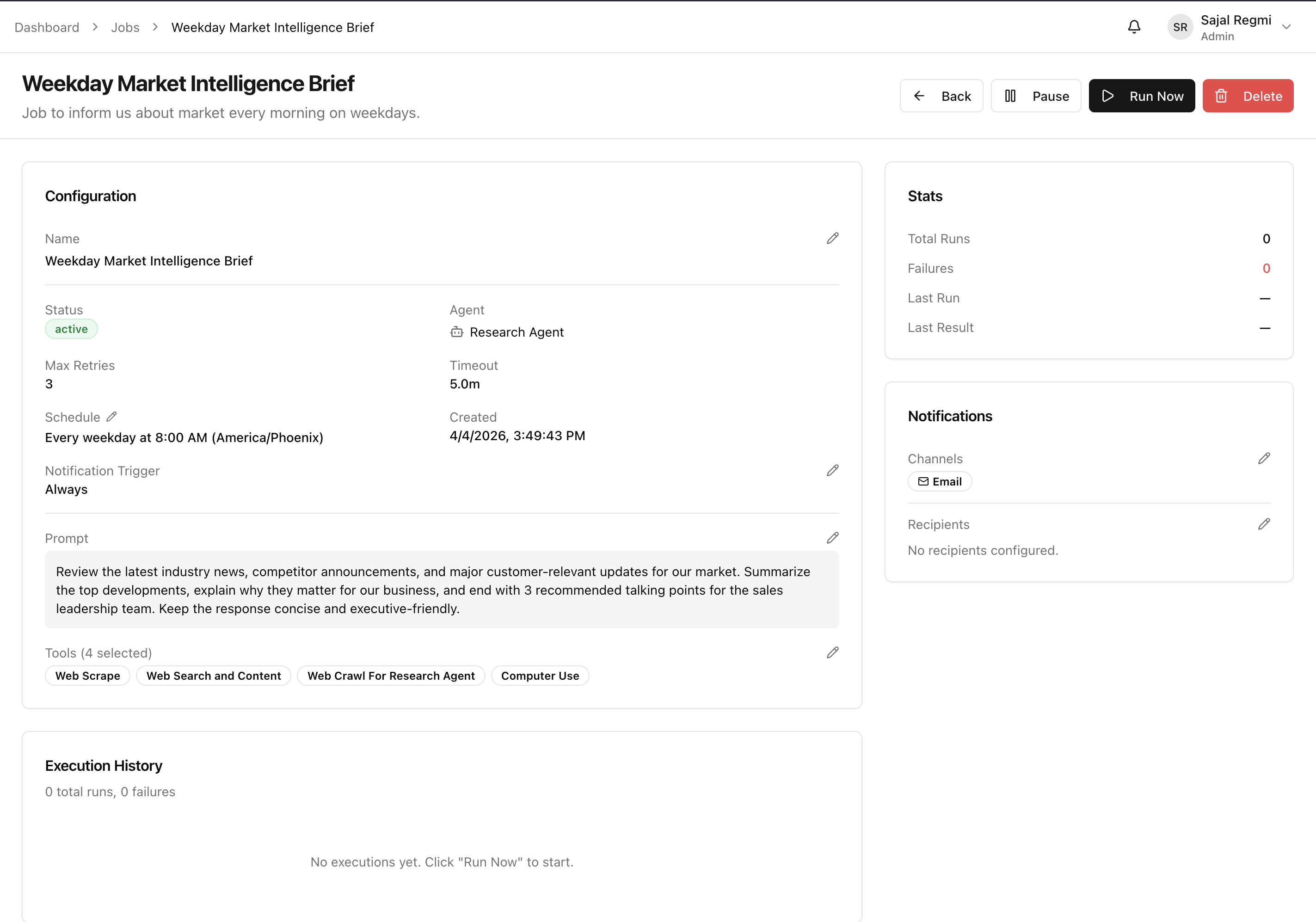
After saving, open the job details page to confirm everything looks correct.
Review:
- The selected agent
- The saved prompt
- The schedule
- The notification settings
- Any attached files or tools
This is the place to make sure the job is configured the way you expect before you rely on it.
Monitor Runs and Execution History
Each time the job runs, you should be able to review its execution history.
This helps you answer questions like:
- Did the job run on time?
- Did it succeed or fail?
- What happened in the latest run?
- Do we need to adjust the prompt or schedule?
Execution history is especially useful for jobs tied to important workflows, such as reporting, data operations, or leadership updates.
Run, Pause, or Update a Job
Jobs are not set once and forgotten forever.
As your process changes, you may want to:
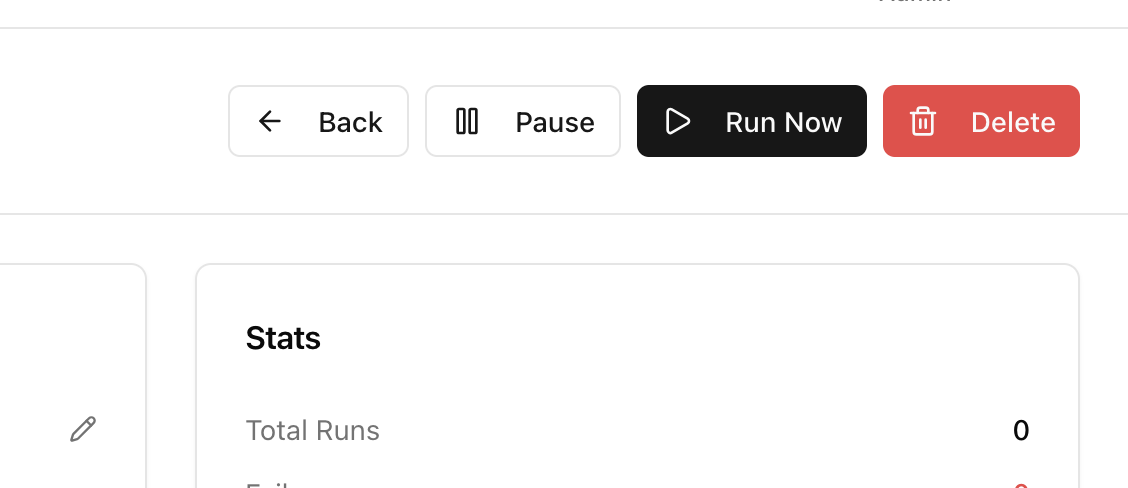
- Run the job manually to test it
- Pause it temporarily
- Resume it later
- Update the prompt
- Change the schedule
- Adjust who gets notified
For example, if the sales team no longer wants a daily update, you might pause the job and switch it to a Monday, Wednesday, Friday schedule later.
When to Use Jobs
Use Jobs when the work should happen repeatedly without someone remembering to ask for it each time.
Jobs are a good fit when the task is:
- Recurring
- Time-based
- Easy to define in a prompt
- Useful to more than one person
- Important enough to notify someone about the result
If the work is one-time or exploratory, a normal chat with an agent is usually the better place to start.
Best Practices
- Use a name that clearly describes the outcome, not just the topic
- Write prompts that produce a stable structure every run
- Start with a small recipient group until the output is reliable
- Review the first few runs before depending on the job heavily
- Pause or update jobs when the business need changes
Suggested Enterprise Job Ideas
If you are not sure where to start, here are a few practical examples:
- A morning executive brief on industry and competitor movement
- A nightly report on failed syncs, import errors, or missing records
- A weekly product feedback summary from support conversations
- A daily review of priority accounts, renewal risks, or customer escalations
- A recurring compliance watch for policy, vendor, or regulation changes
Last updated: April 3, 2026