
Memory System
Memory System is the persistent source of truth for your agents.
It stores your files and documentation in searchable collections, so agents can find relevant facts and recall them on demand instead of relying only on model priors.
What Memory Gives You
- Persistent context: Your business knowledge stays available across chats and sessions.
- Documentation grounded answers: Agents answer from indexed content you uploaded.
- On demand recall: At query time, agents retrieve the most relevant chunks for the user request.
- Operational consistency: Teams get repeatable answers from the same approved source material.
Where to find the Memory Write tool: It is available from the Platform Catalog. Admins can access Platform Catalog from the left sidebar, while members can access it under Advanced Features.
Both users and agents can create and access memories. Start with user-managed setup, then move to agent-managed creation.
User Managed Memories
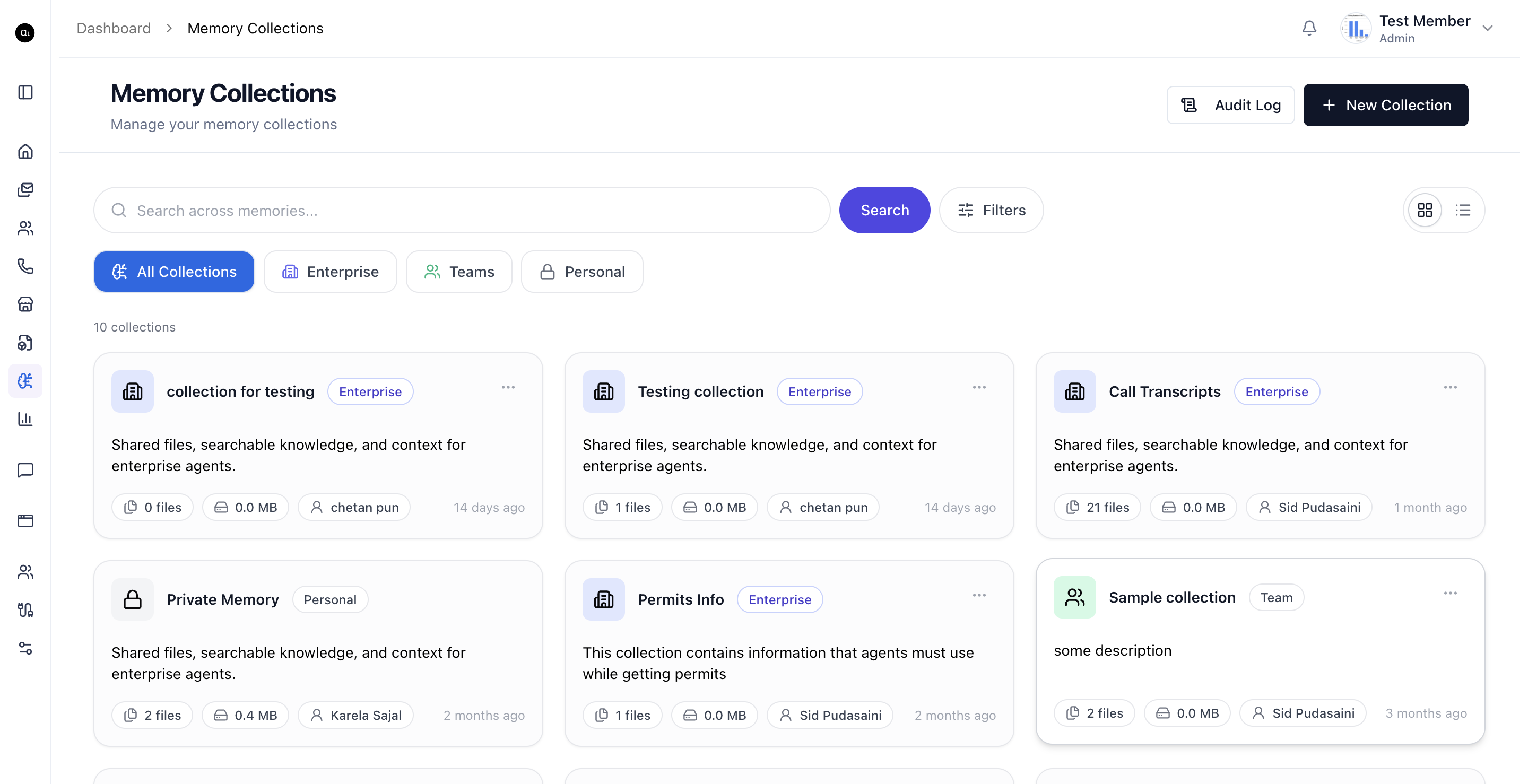
Step 1: Open Memory Collections
Go to Memory Collections from the dashboard. This is where you create and manage persistent knowledge collections.
Step 2: Create a New Collection
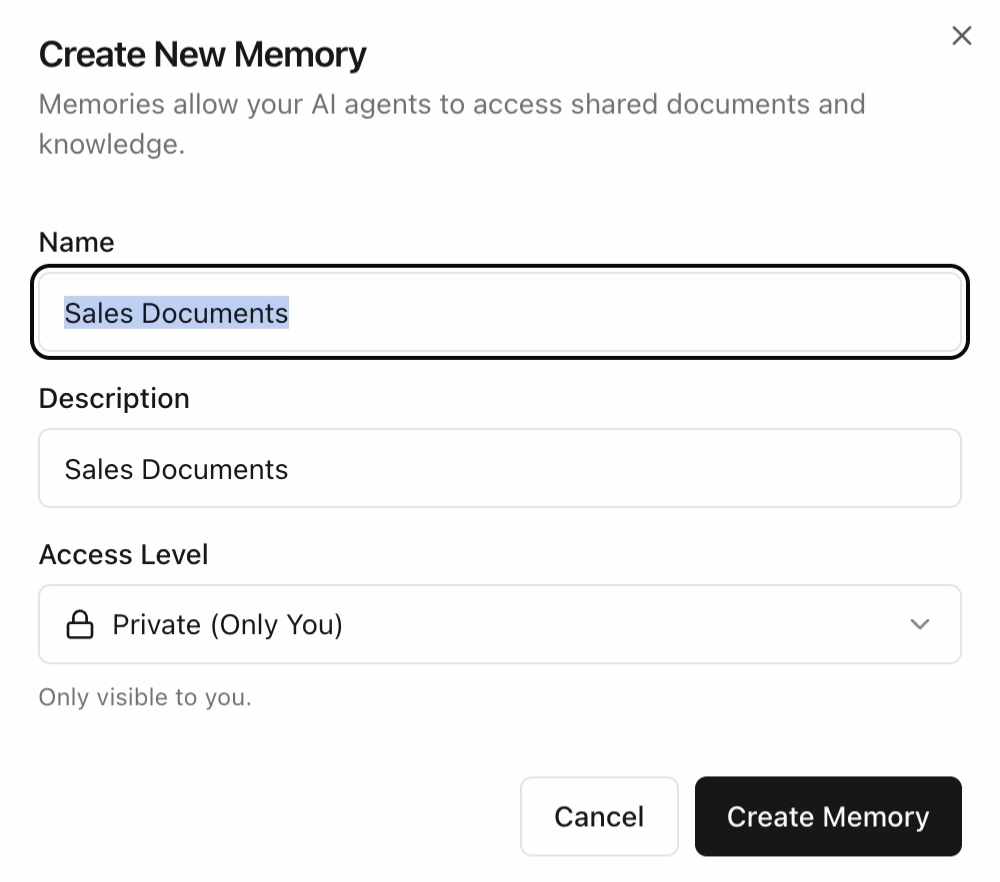
Click New Collection, then provide:
- Name (example:
Sales Documents) - Description
- Access Level (
Private,Team, orEnterprise)
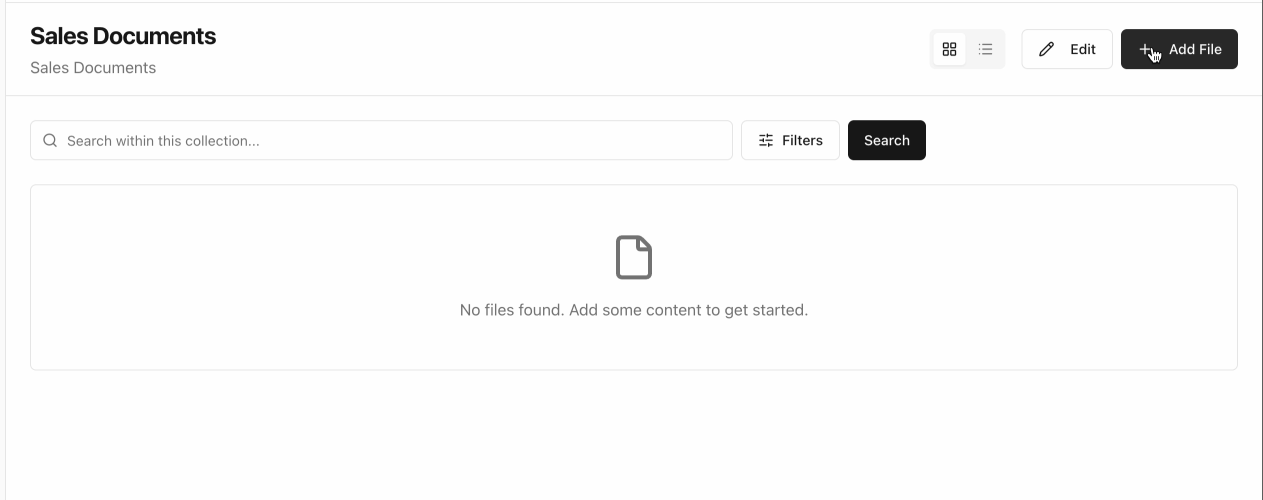
Step 3: Open the Collection and Add Files
Open your new collection and click Add File.
If the collection is new, you will see an empty state until content is uploaded.
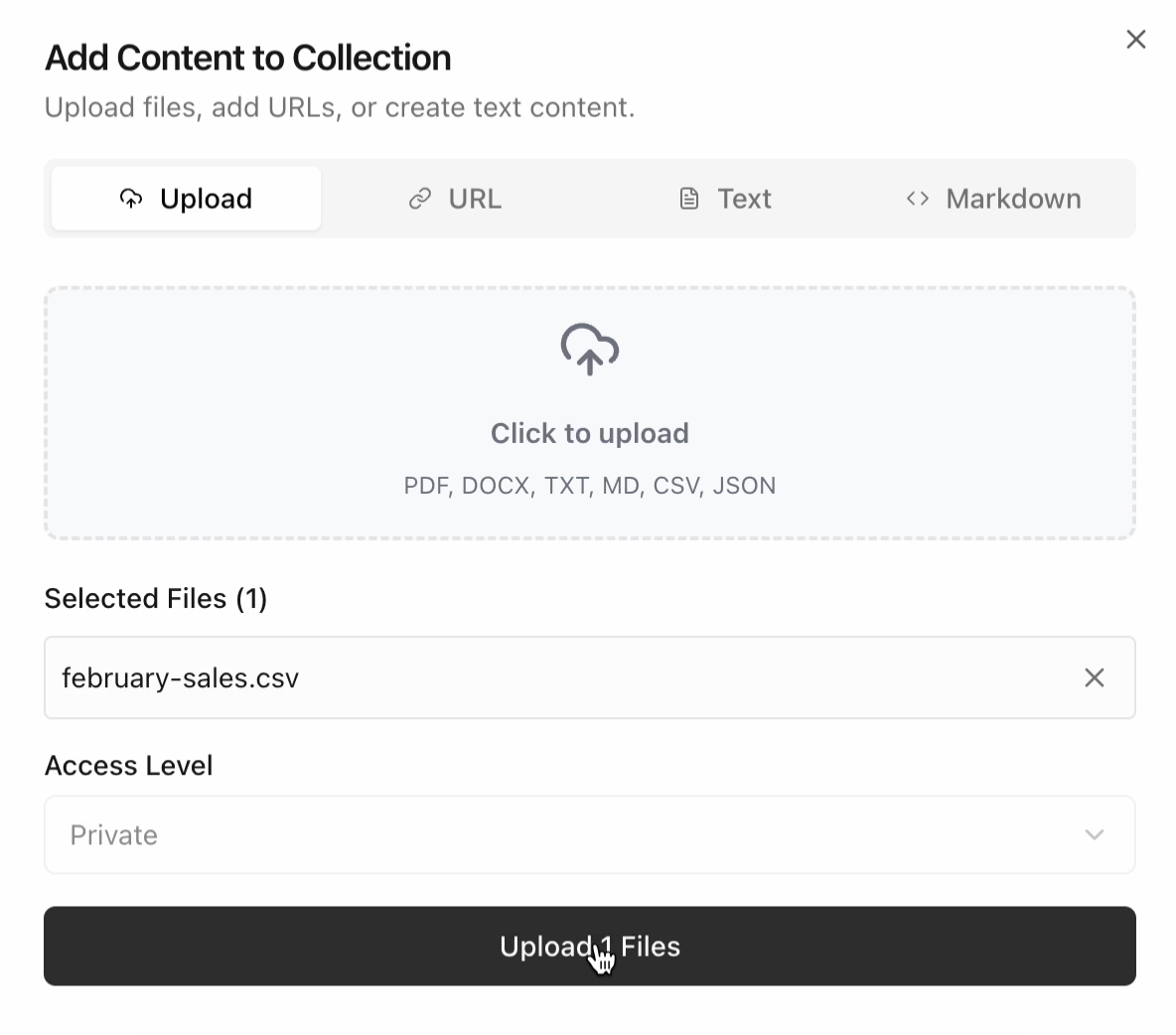
In the add-content modal, upload files or add URL/text/markdown content.
Supported types include PDF, DOCX, TXT, MD, CSV, and JSON.
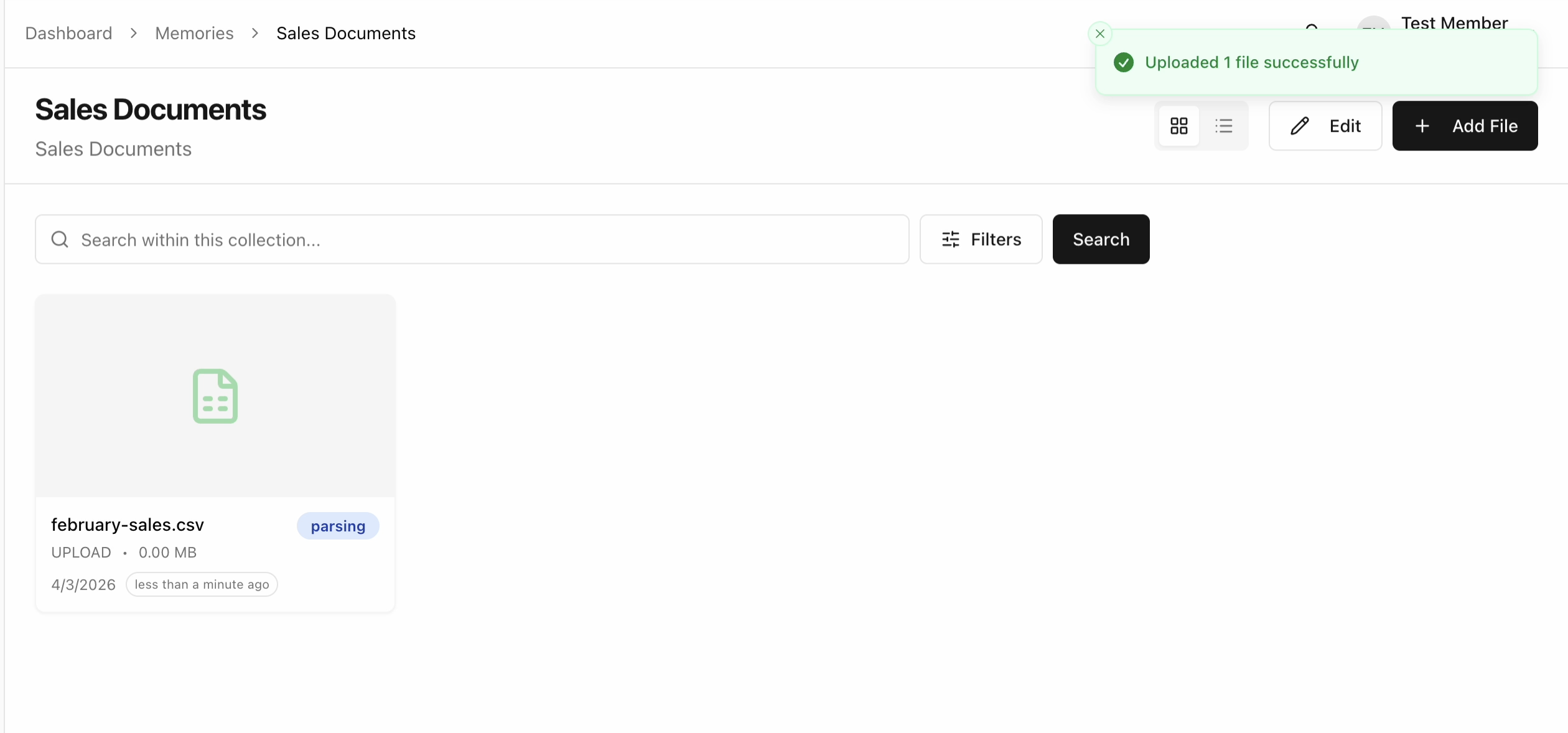
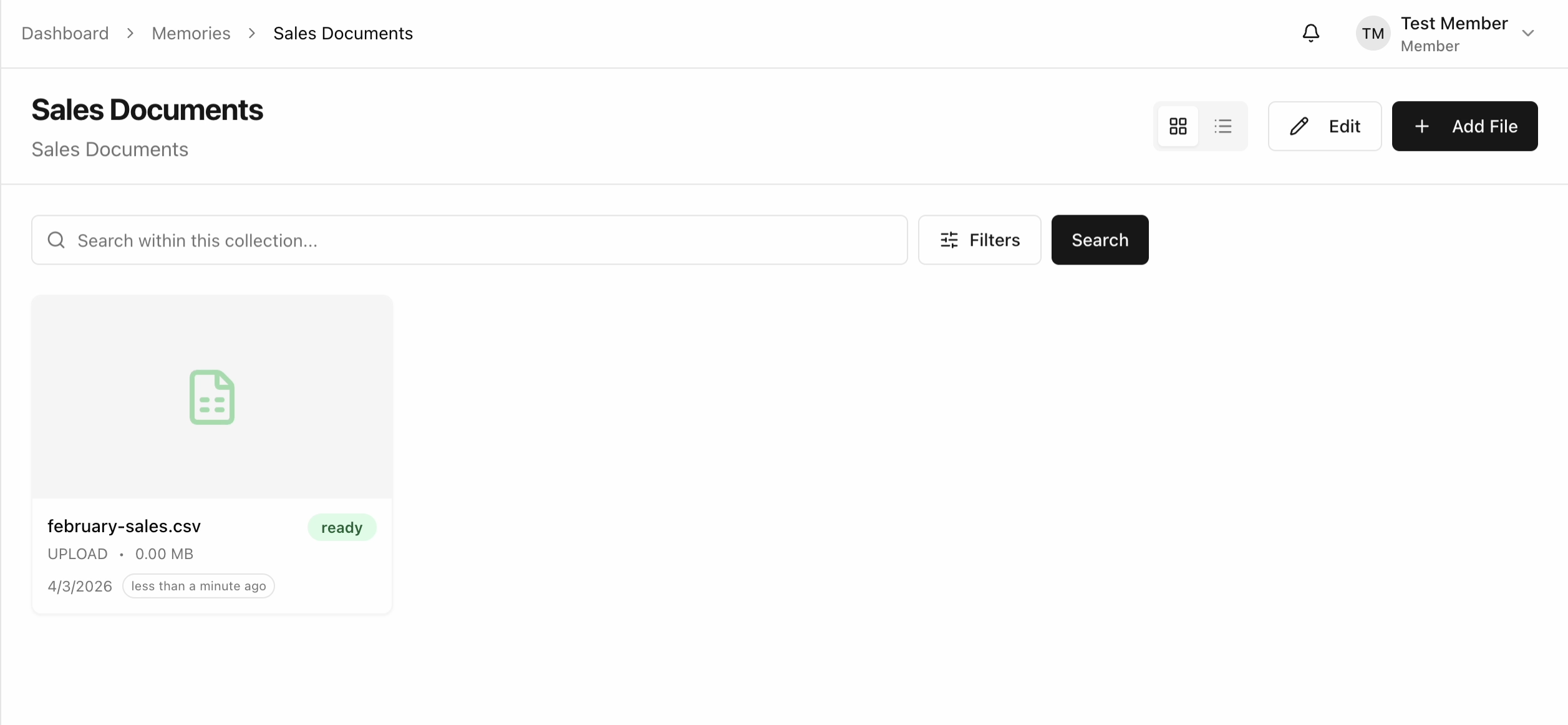
Step 4: Wait for Indexing
After upload, files enter processing states such as parsing and then move to ready.
Only ready content is fully retrievable by search and agents.
Step 5: Search the Collection for Insights
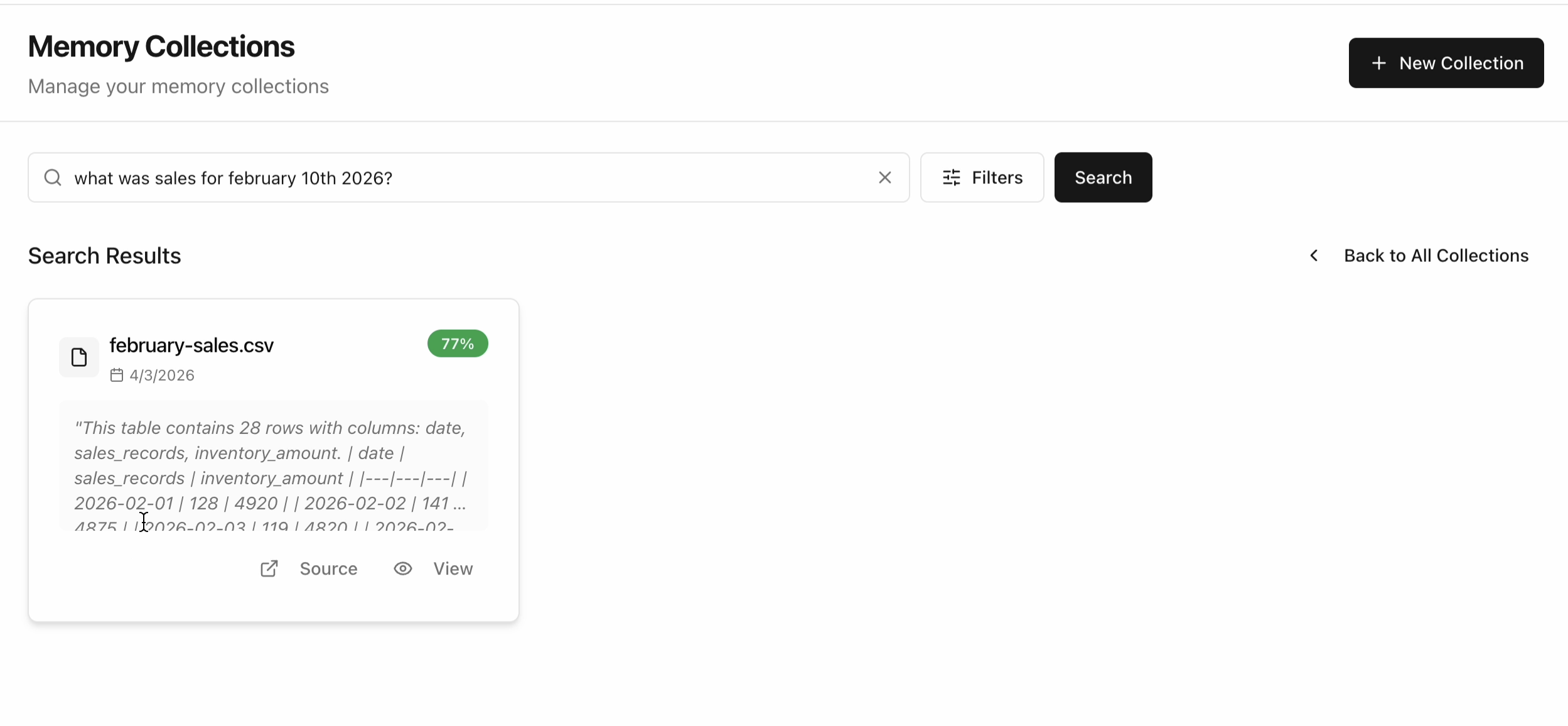
Use collection search to verify that relevant chunks are retrievable.
Example query: what was sales for february 10th 2026?
If indexing is healthy, search results return the relevant file and score.
Step 6: Connect to Agent and Recall on Demand
Attach the collection as a knowledge source in the agent's Knowledge tab.
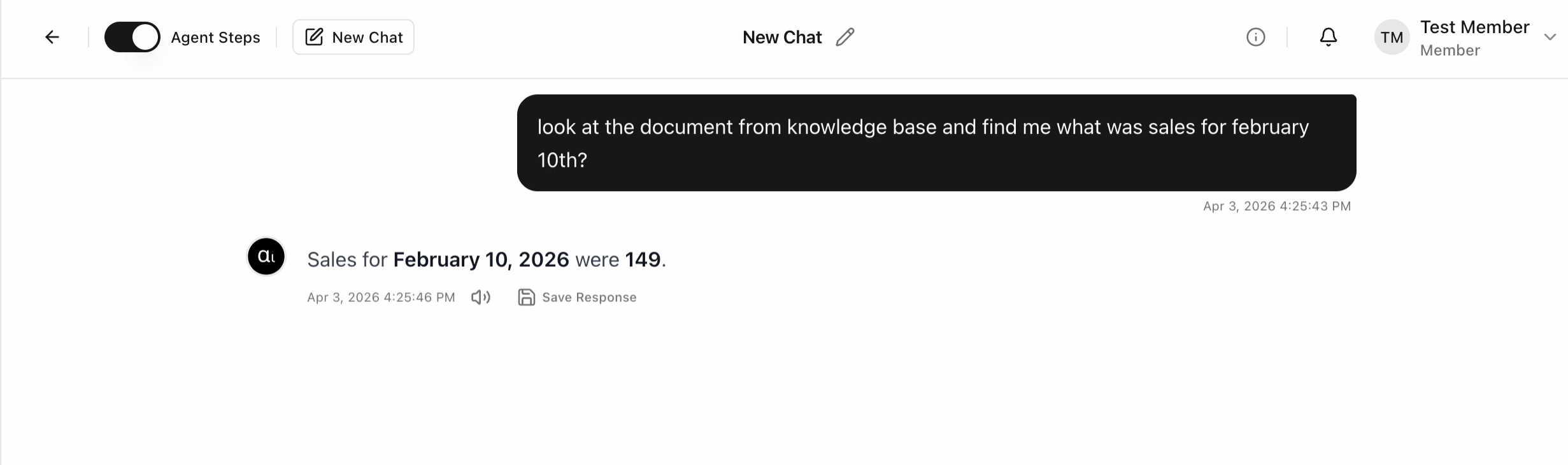
At runtime, the agent retrieves relevant chunks from memory and injects them into model context before responding. This is how memory acts as the persistent source of truth.
Example prompt:
look at the document from knowledge base and find me what was sales for february 10th?
The answer is grounded in uploaded memory content, not a guess.
Agent Managed Memory
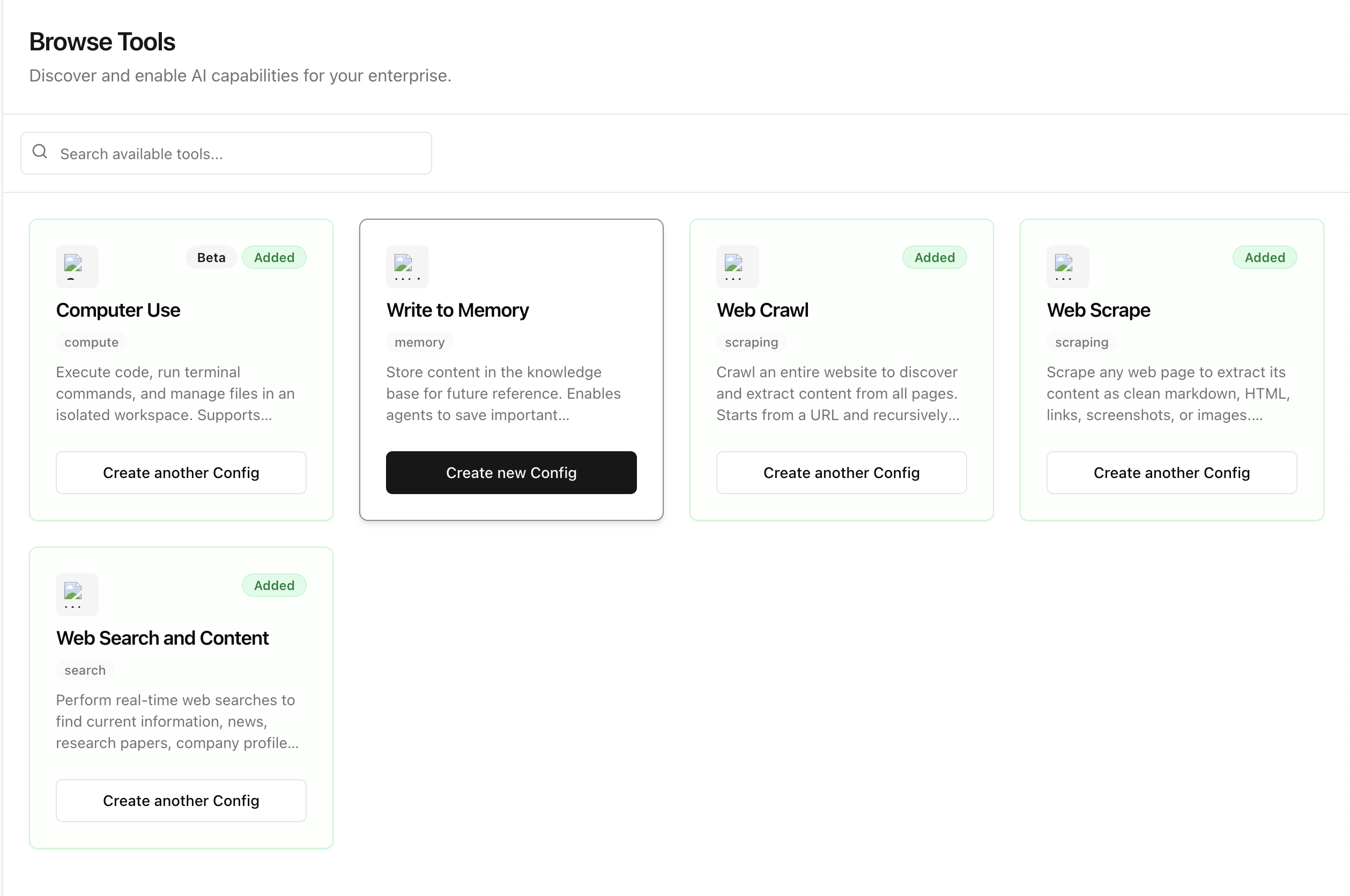
Step 1: Enable Memory Write Tool from Platform Catalog
The Write to Memory tool is available in Platform Catalog as a platform tool.
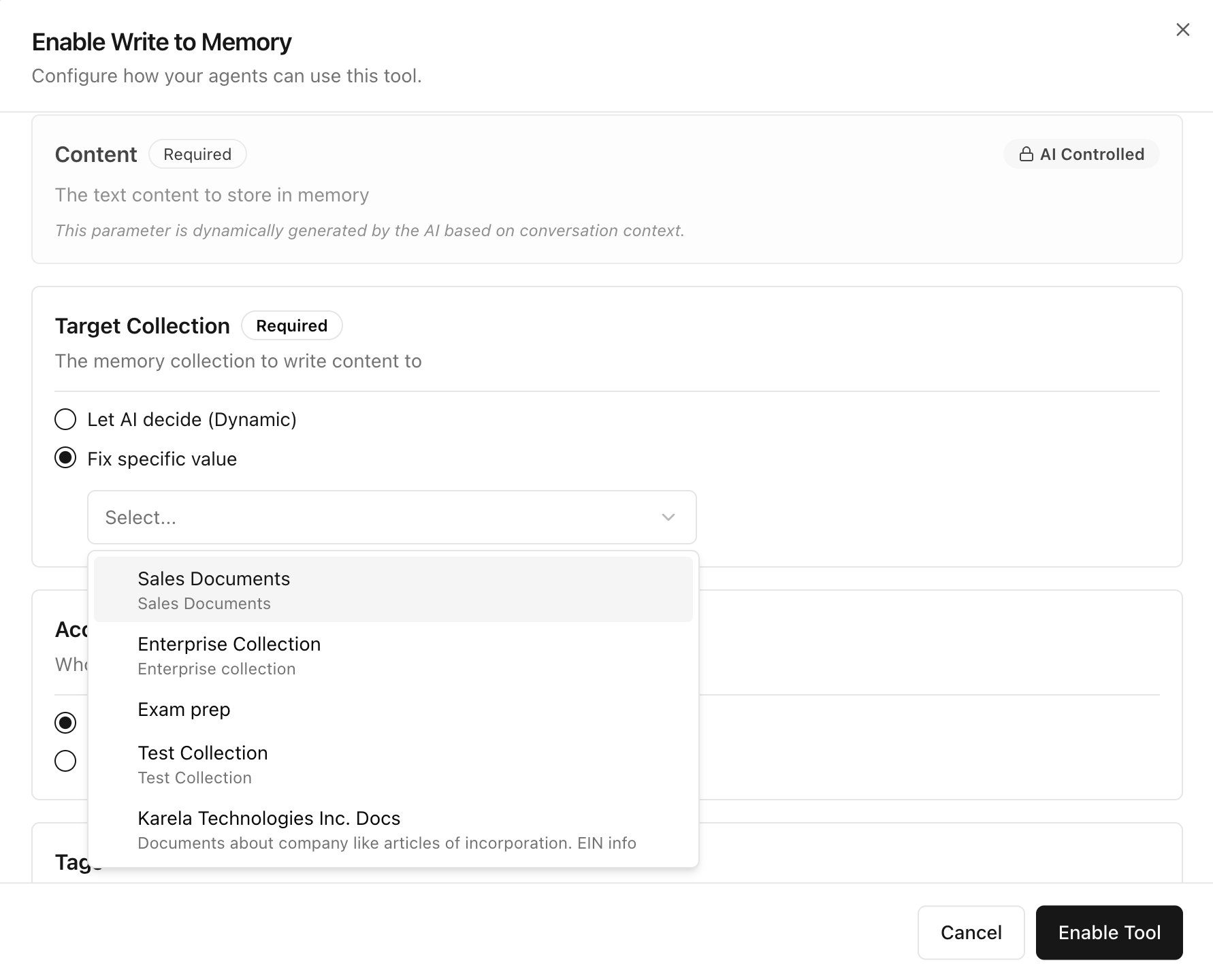
Step 2: Configure Tool Parameters (Collection Selection)
Enable Write to Memory and configure tool parameters.
- Set Target Collection to the memory collection you want the tool to write to.
- Use a fixed collection when you want controlled writes.
For attaching tools to an agent, see Tools & Connectors.
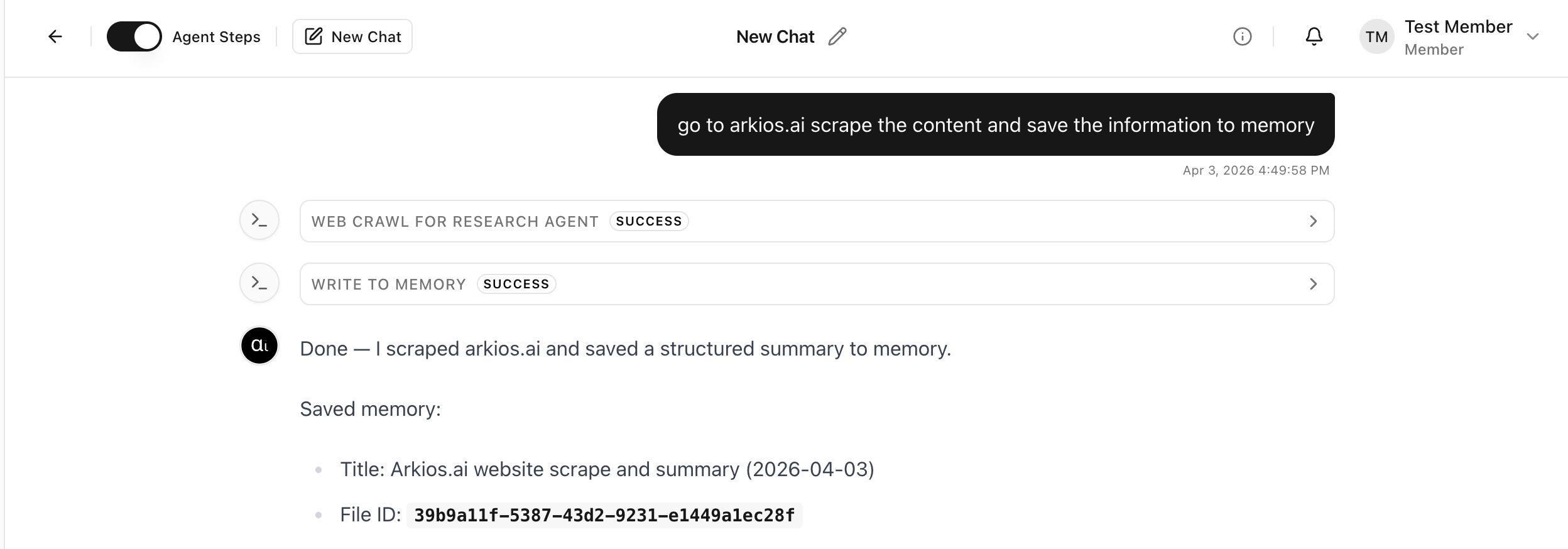
Step 3: Agent Memory Creation Success
Run a prompt that uses crawl/scrape plus memory writing. A successful run shows the memory-write step completed.
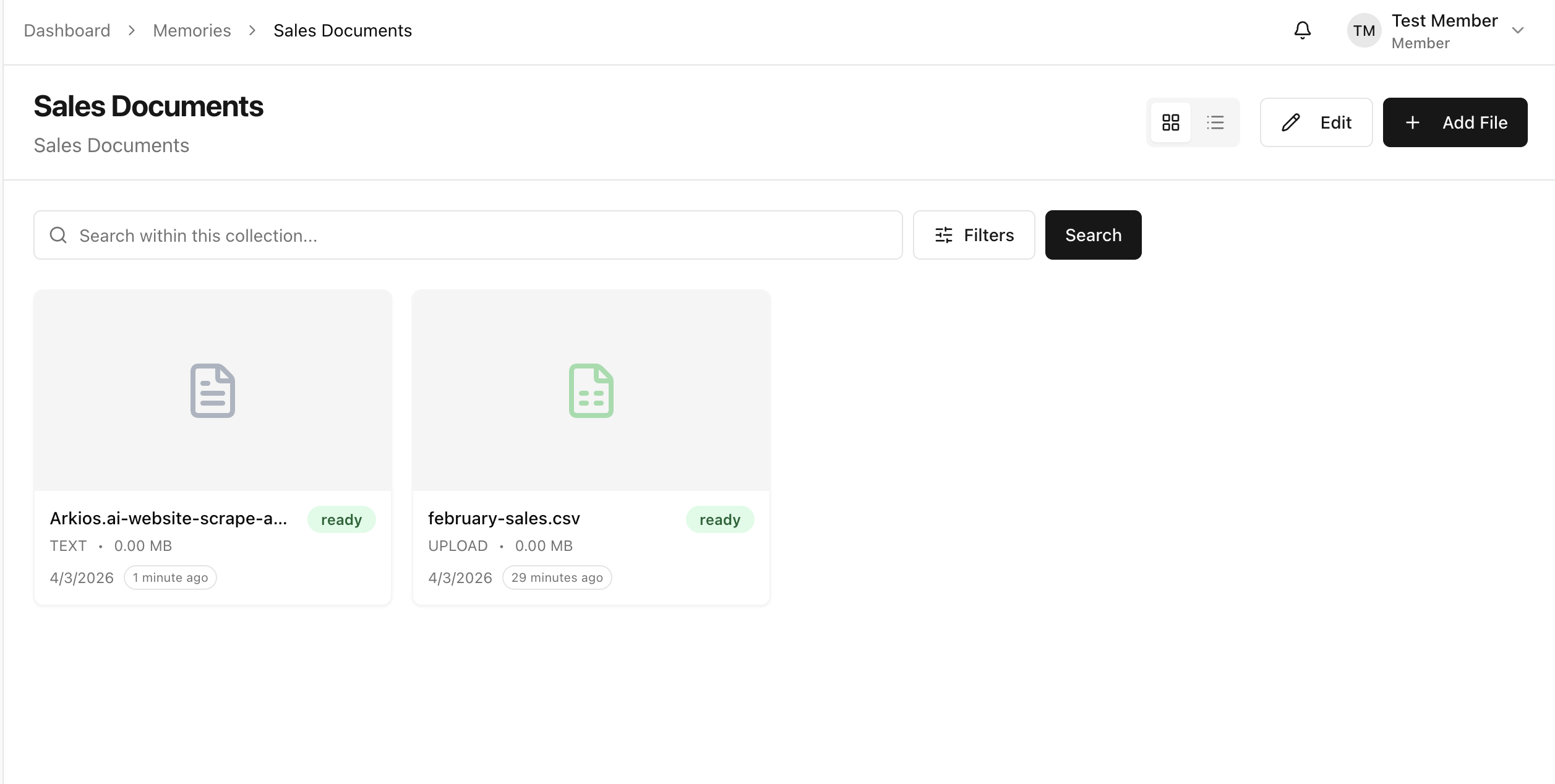
Step 4: Proof of Successful Creation
Open the target memory collection and confirm the newly created memory item appears and is in ready state.
Ongoing Management
Once memory is set up, keep collections healthy over time:
- Add new files as source data changes.
- Remove outdated or duplicate files.
- Re-test search quality with representative questions.
- Review access level and sharing scope.
- Keep collections focused by domain for better retrieval precision.
Best Practices
- Keep collections focused by domain (for example: sales, support, legal).
- Use clear file names and clean source content.
- Validate with representative business questions after each upload.
- Attach only relevant collections to each agent.
- Tune source configuration in Knowledge Sources for precision vs recall.
Continue Reading
Last updated: April 2, 2026