
Knowledge Sources
Knowledge sources let your agent answer using your organization data instead of only model priors.
At a glance: Knowledge bases are memory-backed collections and files your agent retrieves from to ground responses in real enterprise data. For the complete memory guide, see Memory System.
When you attach collections, the agent can retrieve relevant chunks from those files at runtime and ground responses with real context.
Before You Start
Make sure you have:
- At least one memory collection with indexed files
- Access to the target agent
- Retrieval enabled in the agent configuration (recommended)
For memory architecture details, see Memory System.
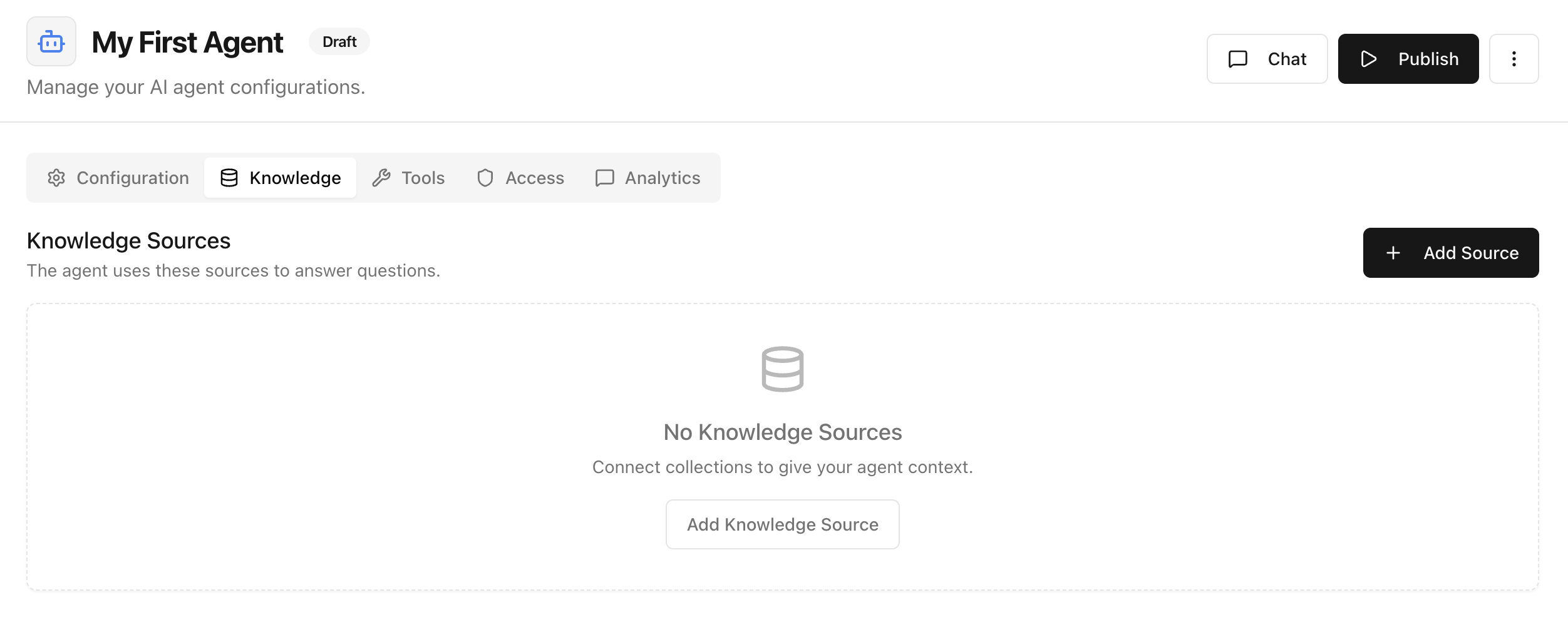
Step 1: Open Knowledge and Click Add Source
In your agent page, open the Knowledge tab and click Add Source.
Step 2: Select a Collection and Add It
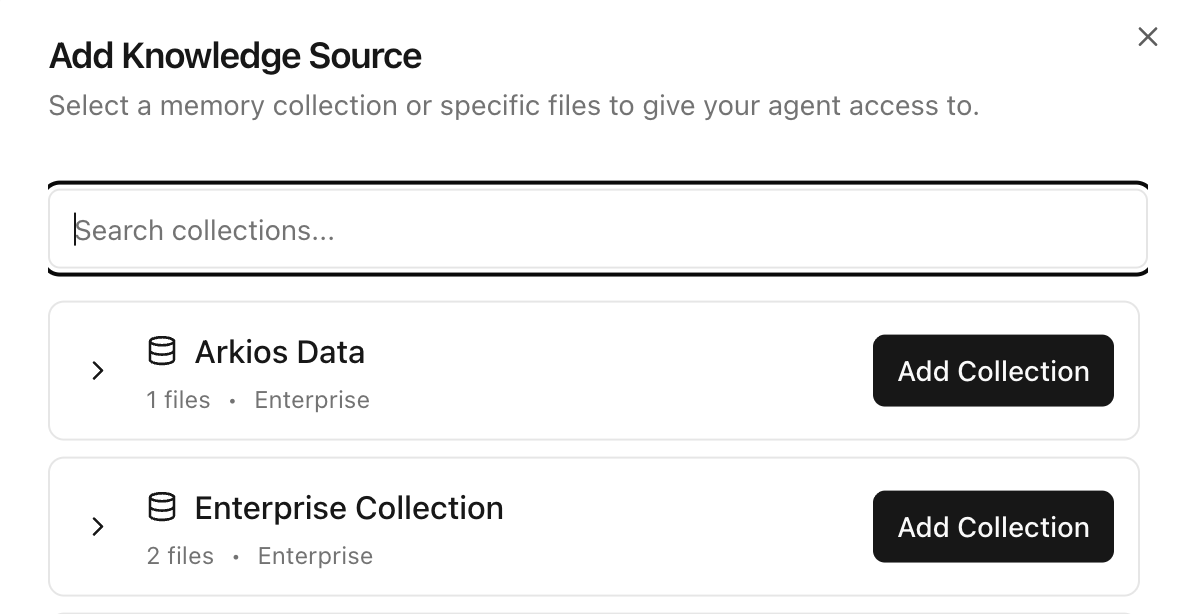
In the Add Knowledge Source modal:
- Search for the collection you want to attach
- Expand a collection if you need to inspect included files
- Click Add Collection for the collection you want
Step 3: Verify Source Is Attached
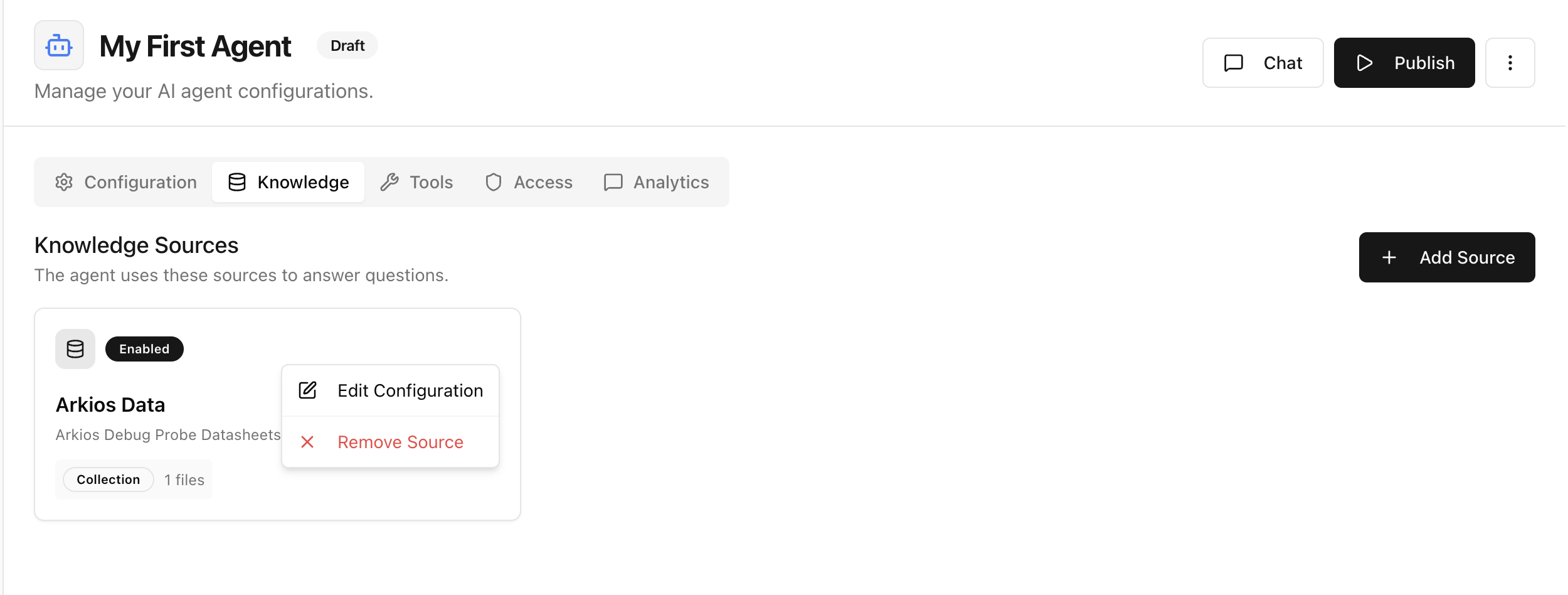
After adding, the collection appears as a knowledge source card on the agent.
From the source action menu, you can:
- Edit Configuration
- Remove Source
Step 4: Choose Which Files the Agent Uses (Optional)
By default, an attached collection gives the agent access to every file inside it, including any new files added later. If you only want a subset of files in scope, you can exclude individual files per agent without changing the collection itself.
Click the collection card in the Knowledge tab to open the Manage Files dialog.
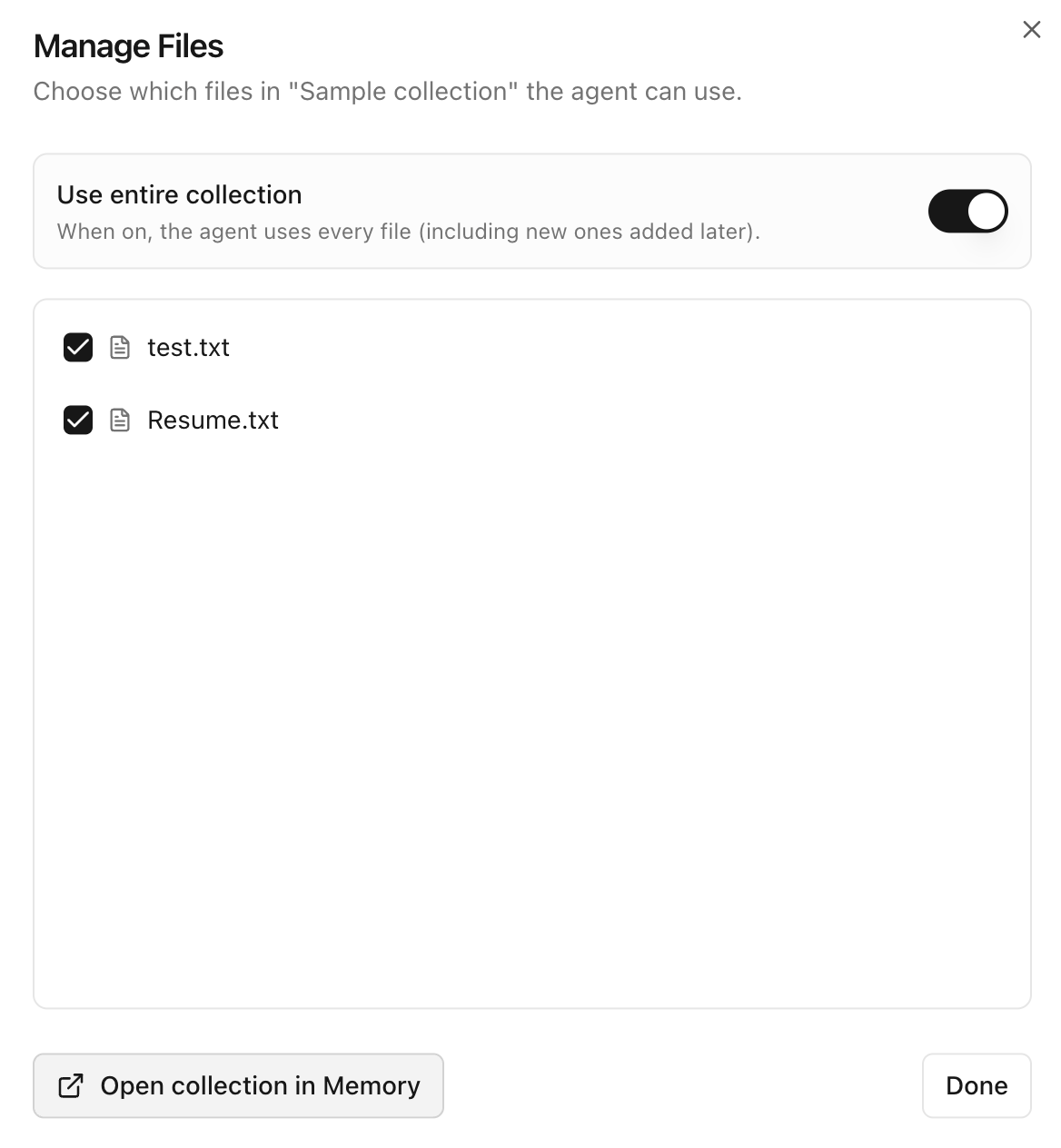
In the dialog you can:
- Toggle Use entire collection on to include every file (the default). New files added to the collection later are automatically available.
- Toggle Use entire collection off to switch to selective mode. All files become unchecked and you opt files in one by one.
- Tick or untick individual files to include or exclude them for this agent.
- Click Open collection in Memory to jump to the underlying collection.
Excluded files are scoped to this agent only — other agents using the same collection are unaffected, and the files themselves remain in the collection.
Step 5: Retrieval Configuration (Optional)
Retrieval configuration controls how the agent searches memory and how much retrieved context is used in responses.
This is needed to balance precision, recall, token usage, and answer quality.
If no specific retrieval configuration is found for a source, the agent uses its default retrieval configuration.
Step 5.1: Collection Retrieval Configuration
Open Edit Configuration on the source card to tune retrieval for that specific collection.
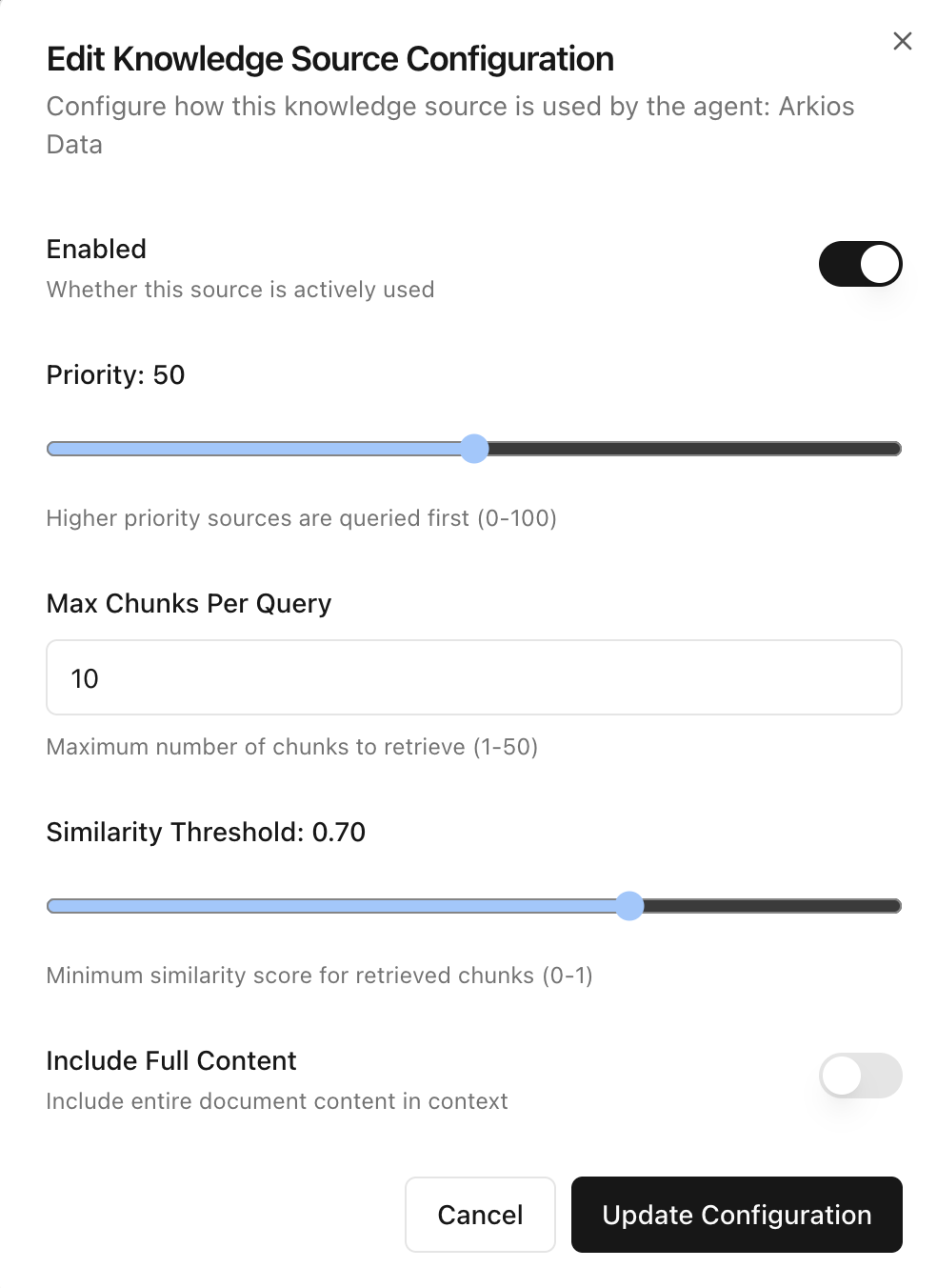
Collection-level settings:
- Enabled: Turns this source on or off without removing it.
- Priority (0-100): Controls source ordering. Higher priority sources are queried earlier.
- Max Chunks Per Query (1-50): Maximum number of chunks returned from this source for each user query.
- Similarity Threshold (0-1): Minimum similarity score required for chunks from this source.
- Include Full Content: Adds the entire document content to context instead of only retrieved chunks.
Step 5.2: Agent Retrieval Configuration (Default)
Configure retrieval defaults in the agent's Retrieval Configuration section. These settings apply when a source does not override behavior.
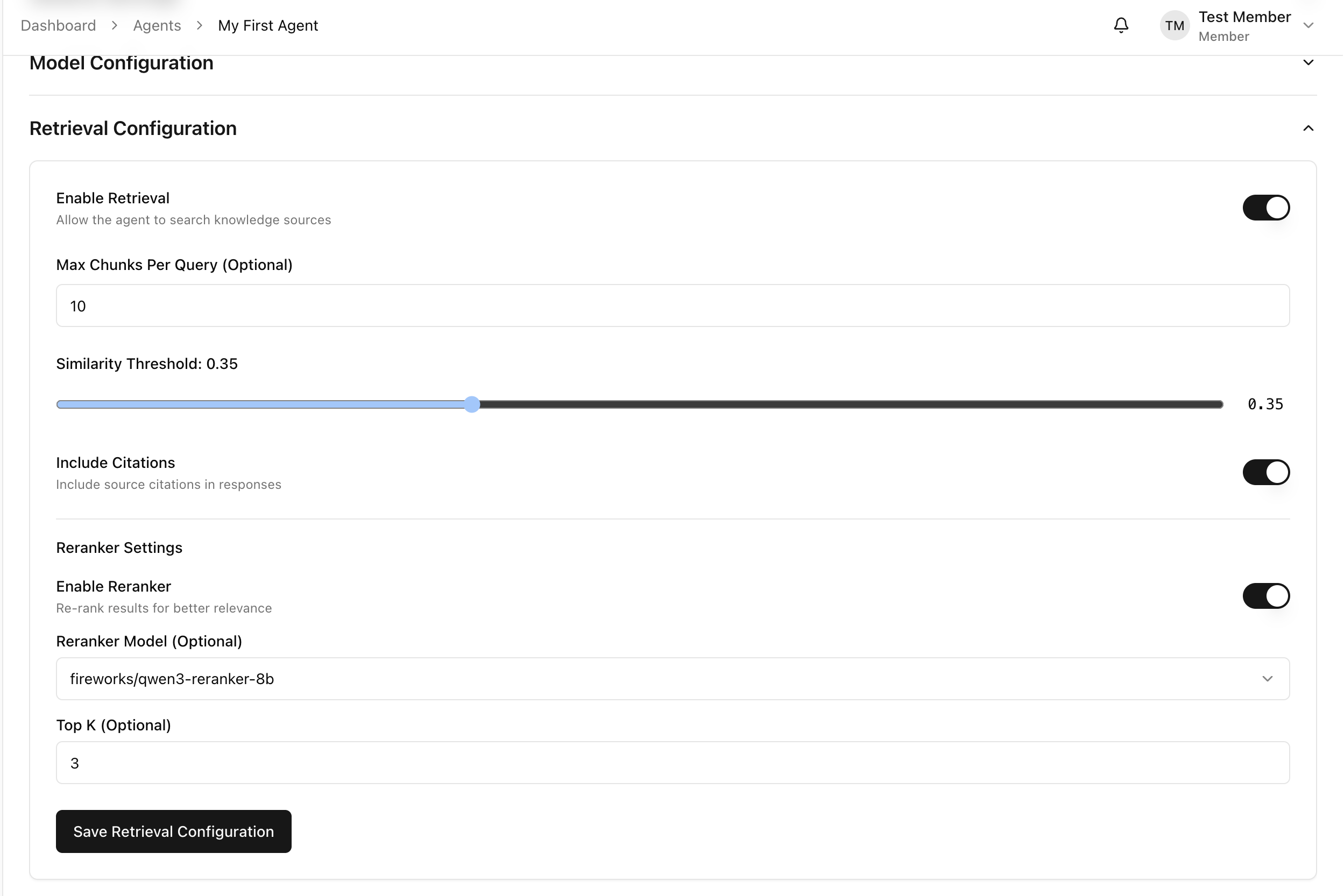
Agent-level settings:
- Enable Retrieval: Turns retrieval on or off for the entire agent.
- Max Chunks Per Query (Optional): Caps total retrieved chunks passed to the model per request.
- Similarity Threshold: Minimum relevance score for candidate chunks.
- Include Citations: Adds source references in responses.
- Enable Reranker: Re-ranks retrieved chunks for better relevance.
- Reranker Model (Optional): Model used when reranking is enabled.
- Top K (Optional): Number of reranked chunks kept after reranking.
Recommended Starting Values
Collection defaults:
- Enabled:
On - Priority:
50 - Max Chunks Per Query:
10 - Similarity Threshold:
0.70 - Include Full Content:
Off
Agent defaults:
- Enable Retrieval:
On - Max Chunks Per Query:
10 - Similarity Threshold:
0.70 - Include Citations:
On - Enable Reranker:
On - Reranker Model:
fireworks/qwen3-reranker-8b - Top K:
3
Tune from these defaults using real prompts from your team.
Validation Checklist
- Ask 5 to 10 representative questions
- Confirm answers reflect your attached collection content
- Raise threshold if results are noisy
- Lower threshold slightly if recall is too narrow
- Adjust priority when two sources contain competing versions
Next Step
After attaching knowledge sources, continue to Tools & Connectors to enable actions beyond retrieval.
Last updated: April 2, 2026