
Call Logs
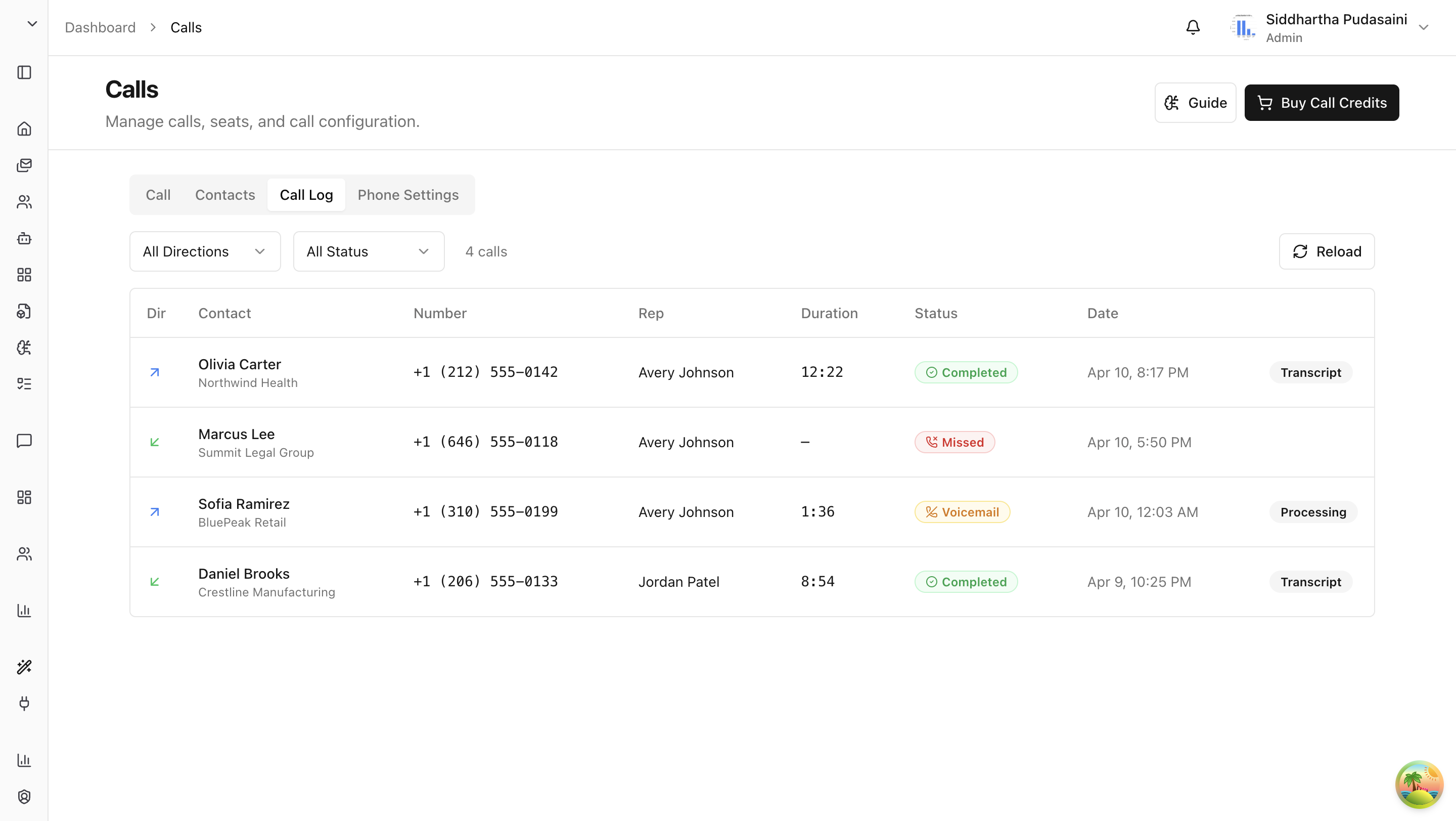
Every call you make or receive is logged. Go to the Call Log tab to see your full call history.
Reading the Call Log Table
Each row in the table is one call. Here's what each column tells you:
| Column | What It Shows |
|---|---|
| Direction | An arrow icon showing whether the call was inbound (incoming) or outbound (outgoing). |
| Contact | The contact's name and company, if they're saved in your contacts. |
| Number | The phone number involved — either the number you called or the number that called you. |
| Rep | The team member who made or received the call. |
| Duration | How long the call lasted (e.g., 0:03:45 means 3 minutes and 45 seconds). |
| Status | A color-coded badge showing how the call ended (see below). |
| Date | When the call happened. |
| Transcript | A badge showing whether a transcript is available for this call. |
Call Statuses
| Status | Color | What It Means |
|---|---|---|
| Completed | Green | The call connected and ended normally. |
| In Progress | Blue | The call is happening right now. |
| Missed | Red | An incoming call that nobody answered. |
| Voicemail | Amber | The call went to voicemail. |
| Failed | Red | The call couldn't connect at all. |
| Busy | Gray | The person you called was busy. |
| Canceled | Gray | The call was canceled before it connected. |
Filtering Your Call Logs
Use the filter dropdowns at the top of the table to narrow down what you see:
- Direction — show All calls, only Inbound, or only Outbound.
- Status — show All, only Completed, only In Progress, or only Missed.
- Refresh — click the refresh button to pull in the latest calls.

The total number of calls matching your filters is shown next to the filter bar.
Viewing Call Details
Click on any call row to open the detail panel. This is where you can dig into everything about that call.
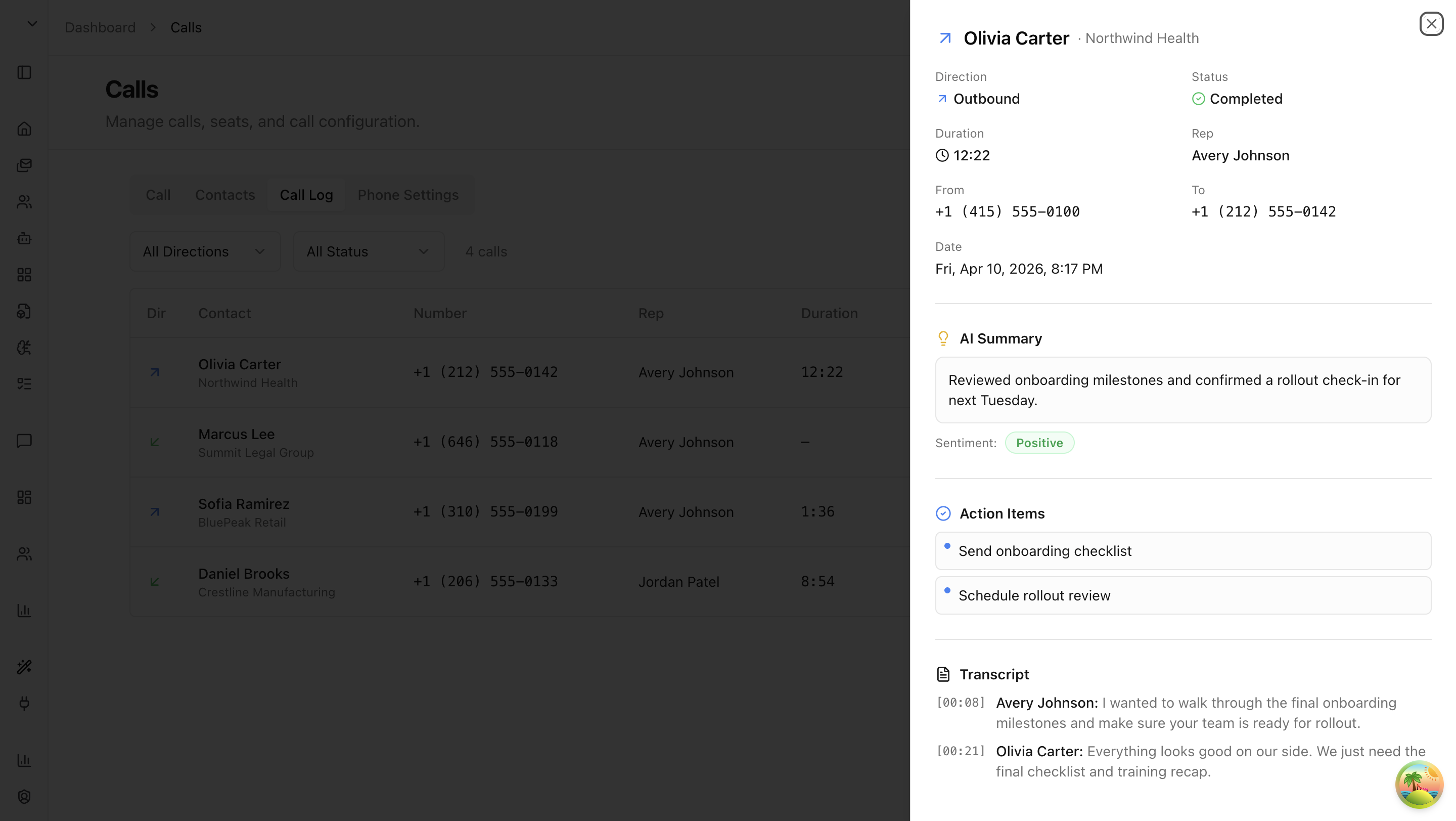
Here's what you'll find:
- Call metadata — direction, status, duration, rep, from/to numbers, and date.
- Recording — an audio player to listen to the call recording (if auto-record was enabled).
- AI Summary — an AI-generated summary of what was discussed, along with a sentiment badge (positive, neutral, negative).
- Action Items — tasks and follow-ups extracted automatically from the conversation.
- Tags — labels attached to the call for organization.
- Notes — a free-text field where you can add your own notes about the call.
- Full Transcript — the complete text of the call, with timestamps and speaker labels so you can see who said what and when.
Transcript Statuses
| Status | What It Means |
|---|---|
| Completed | The transcript is ready — click to read it. |
| Processing | The transcript is still being generated. Check back in a moment. |
Last updated: April 11, 2026