
What Is the Call Feature?
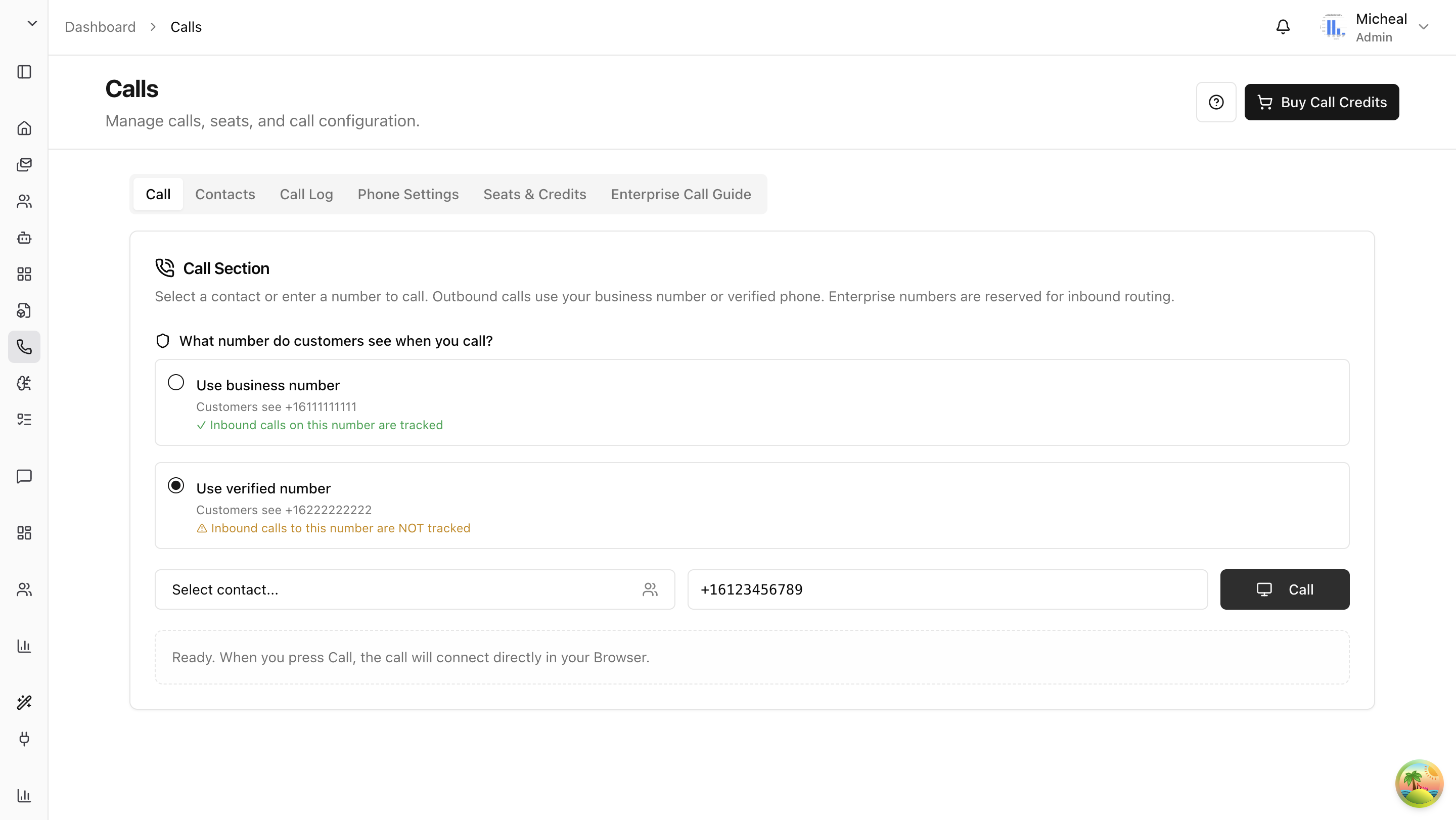
The Call feature lets your team make and receive phone calls directly from the Arkios dashboard — no separate phone app needed. Every call can be automatically recorded, transcribed, and summarized by AI so nothing gets lost.
What Can You Do with It?
- Call anyone from your browser or your physical phone — both work.
- Receive incoming calls on your browser, your phone, or both at the same time.
- Transcribe every call automatically — Transcription are saved and can be viewed back anytime.
- Get transcripts of your calls with speaker labels and timestamps.
- Read AI-generated summaries with sentiment analysis and action items — so you don't have to re-listen to the whole call.
- Save contacts for quick dialing — no need to type numbers every time.
- See your full call history in one place, with filters for direction, status, and more.
Can I Call from My Personal Phone and Still Have It Recorded?
Yes! Here's how it works:
Your enterprise has a shared enterprise phone number. When you call that enterprise number from your personal phone and enter the destination number, the system routes your call through Arkios. Because the call goes through the system, it is recorded and transcribed — even though you're using your personal phone number as the caller id and not the Arkios website.
This is useful when you're away from your laptop but still want your calls tracked.
Can I Receive Incoming Calls on My Personal Phone and Have Them Recorded?
No. If someone calls your personal phone number directly, that call does not go through Arkios, so it cannot be recorded or tracked.
To record incoming calls, the caller needs to reach you through your Arkios-provisioned business number. When a call comes in on your business number, Arkios routes it to your phone (or browser, depending on your settings), and the call is recorded and transcribed automatically.
In short: all incoming calls that you want recorded must go through your Arkios business number.
Caller Id
You can setup your personal phone number as caller id so that transition to a new number is easier. You can configure which number to display when making outbound calls in your settings.
Suppose your current phone number is A. and you want to call via B, but want A to appear on reciever's phone, you can make that happen. This is helpful when making calls to existing client or customer and to aid yourself with transition.
You can ofcourse choose to make B appear on reciever's phone. This is particularly helpful when making a call to new client or customer.
How Do I Get Started?
Getting started takes two steps:
-
An owner or admin sets up the call system — this includes choosing a provider, activating the subscription, This only needs to happen once. See Setting Up.
-
Each team member completes personal onboarding — Verify your personal phone number ( for caller Id purpose ), Get a new business number, and pick how you want to receive calls. See Personal Onboarding.
After that, you're ready to start calling.
Team members: Your admin must assign you a seat for call center before you can access the call features. If you don't have a seat, you'll see a "No Call Access" message.
Who Can Do What?
| Feature | Owner / Admin | Member |
|---|---|---|
| Set up the call system (provider, subscription, enterprise number) | Yes | No |
| Assign seats to team members | Yes | No |
| Purchase credit packs | Yes | Yes |
| Cancel or resume subscription | Yes | No |
| View Seats & Credits tab | Yes | No |
| View Enterprise Call Guide tab | Yes | No |
| Configure another member's phone settings | Yes | No |
| Verify personal phone | Yes | Yes |
| Get a personal business number | Yes | Yes |
| Make and receive calls | Yes (with seat) | Yes (with seat) |
| Manage contacts | Yes | Yes |
| View call logs | Yes | Yes |
| Update own phone settings | Yes | Yes |
Last updated: April 11, 2026