
Phone Settings
After you've completed onboarding, you can adjust your calling setup anytime from the Phone Settings tab.
Admins: You can manage settings for other team members too. Use the dropdown at the top of the page to select a team member and configure their settings on their behalf.
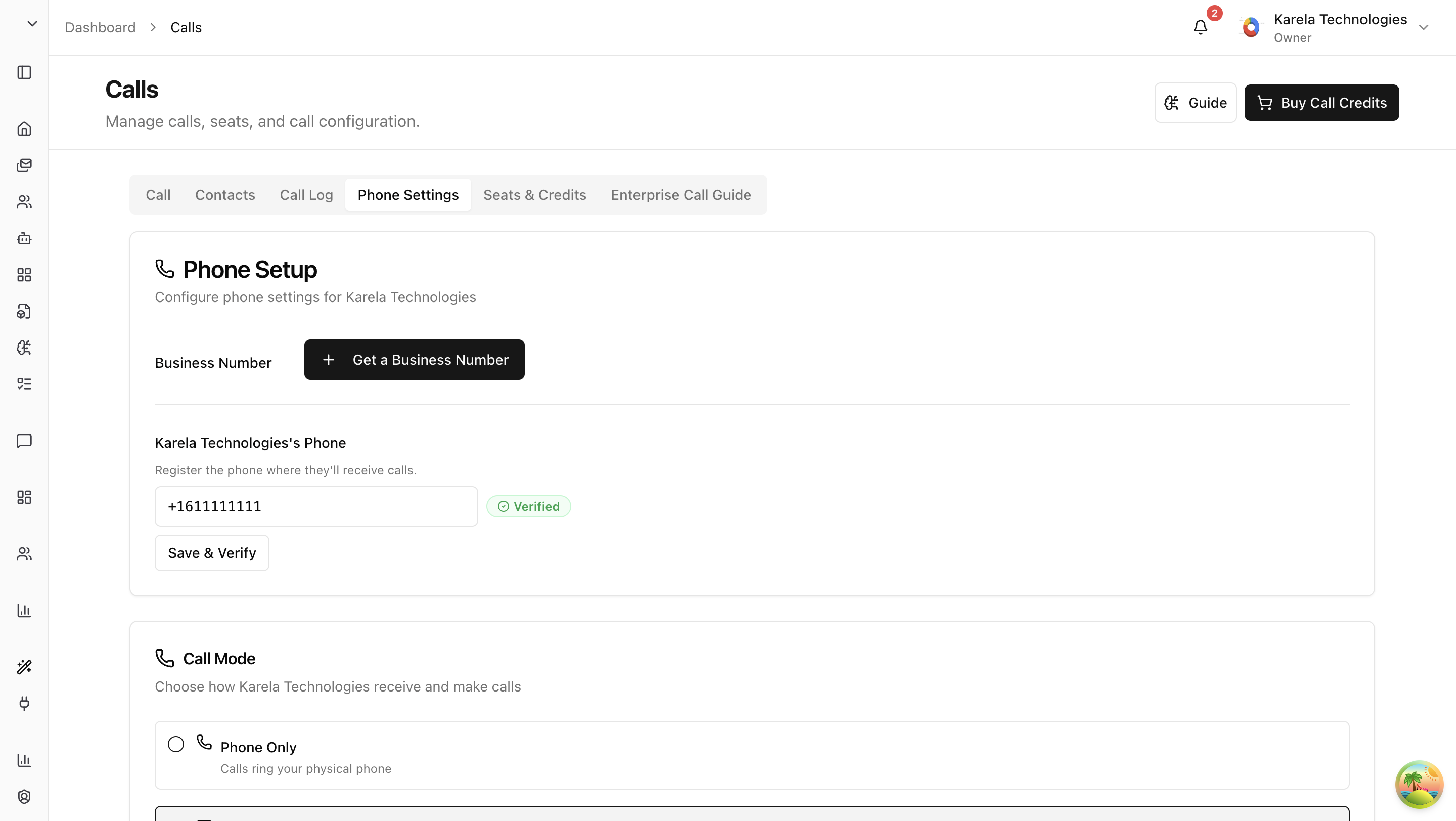
Your Business Number
This section shows your Arkios-provisioned business number (if you have one) with an "Active" badge next to it.
If you skipped getting a business number during onboarding, you can still get one — click the "Get a Business Number" button.
Reminder: A business number ensures that all calls — both incoming and outgoing — are tracked, recorded, and transcribed by Arkios. Without one, incoming calls to your personal phone go directly to you and can't be recorded.
Your Personal Phone Number
This shows the personal phone number you registered and verified during onboarding, with a "Verified" badge.
You can update your personal phone number and re-verify it at any time if your number changes.
Call Mode
This controls how incoming calls to your business number reach you.
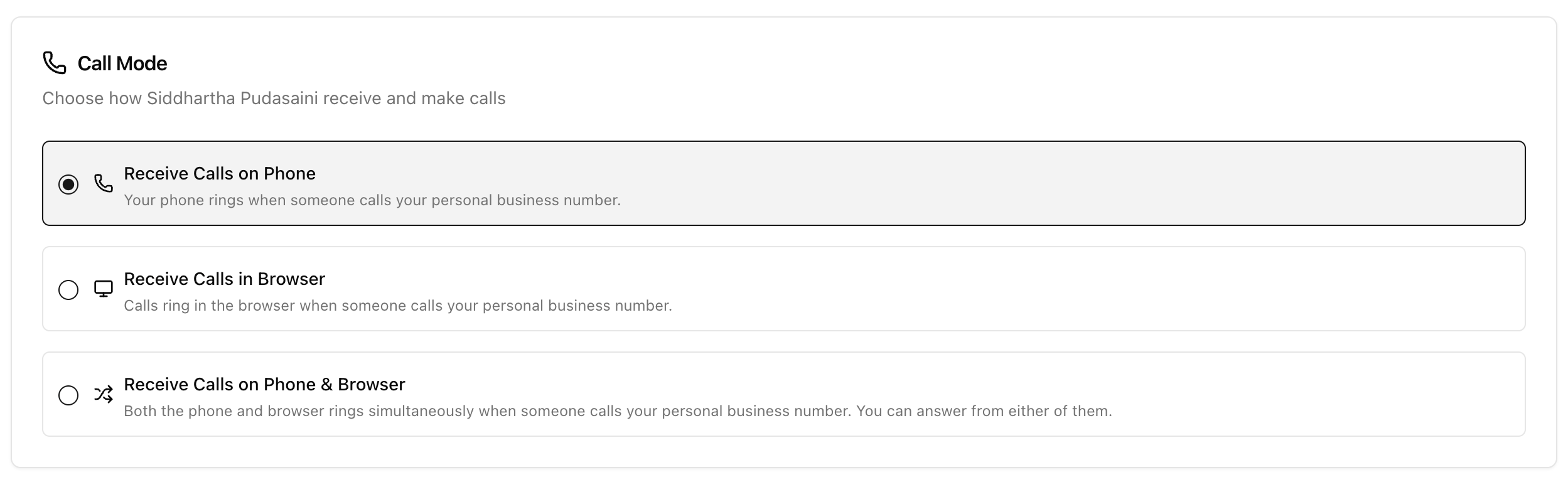
| Mode | What Happens |
|---|---|
| Receive Calls on Phone | Your physical phone rings when someone calls your business number. |
| Receive Calls in Browser | Your browser rings when someone calls your business number. |
| Receive Calls on Phone & Browser | Both ring at the same time — answer from whichever is more convenient. |
Changes take effect immediately for your next call.
Recording & Transcription
Control what happens automatically when you make or receive a call.
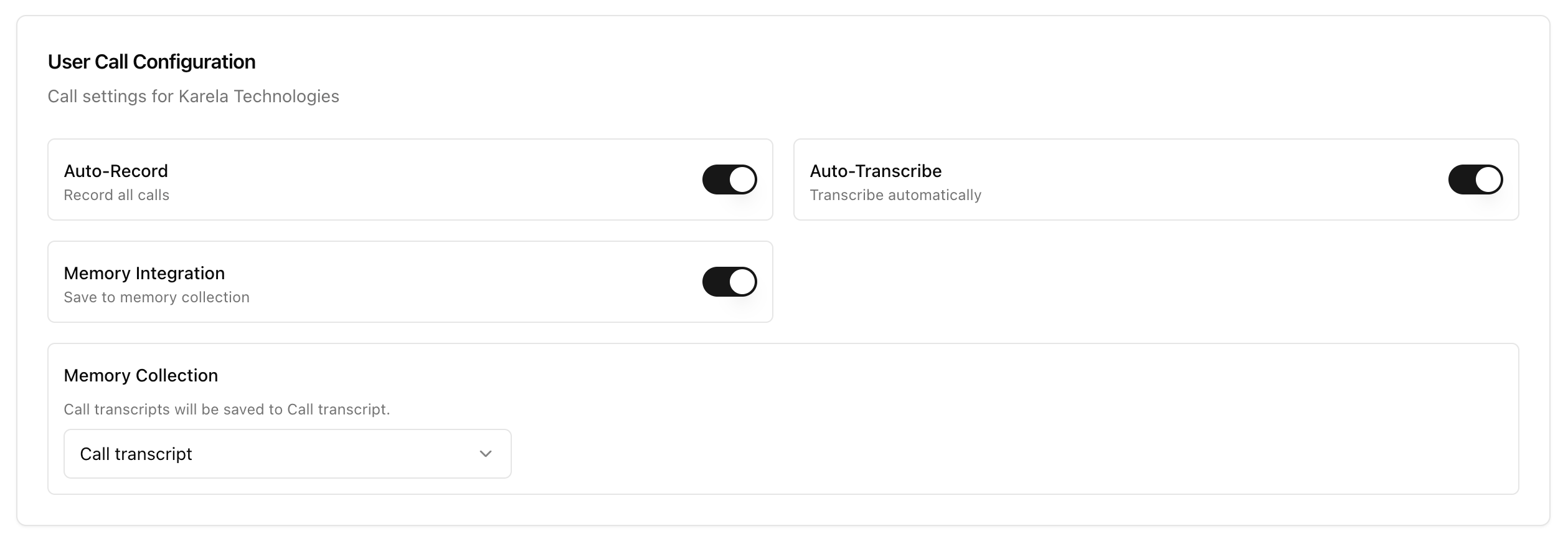
- Auto Record — Toggle on or off. When on, every call is recorded automatically.
- Auto Transcribe — Toggle on or off. When on, recorded calls are automatically transcribed into text with speaker labels and timestamps.
- Memory Integration — Toggle on or off. When enabled, transcripts are sent to a memory collection so Arkios AI can reference them later. If you turn this on, select which memory collection should receive the transcripts.
Note: The enterprise number shown in your settings is used only to route calls through the system. It is not available as an outbound caller ID — you can't use it to make calls.
Last updated: April 11, 2026