
Making Calls
Go to the Call tab to place a call.
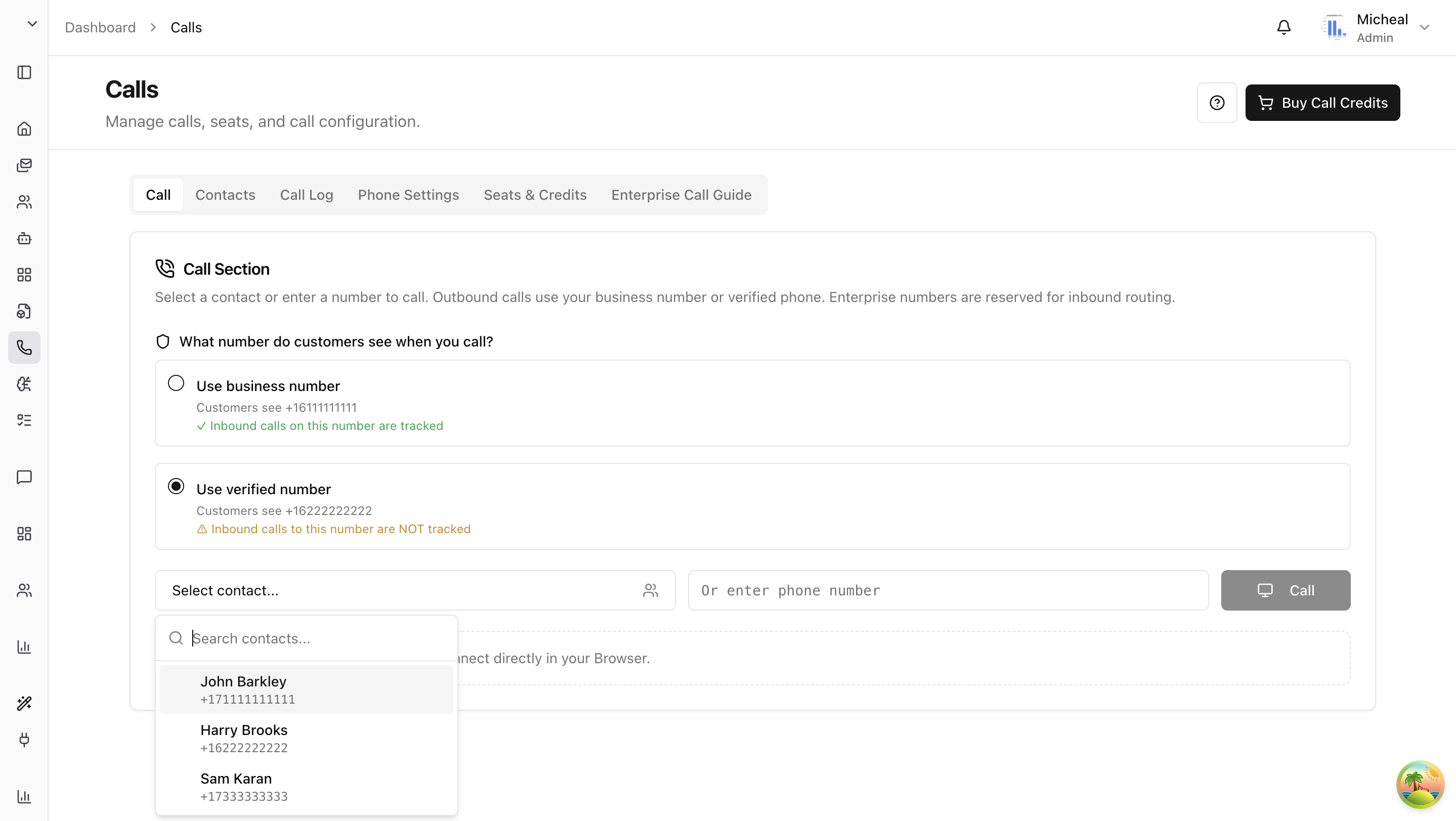
Step 1: Pick Who to Call
You have two ways to enter the destination number:
- Search your contacts — Use the searchable dropdown to find a saved contact by name, phone number, or company. Select them and their number is filled in automatically.
- Type a number manually — Enter any phone number directly into the input field.
Step 2: Choose Which Number the Customer Sees
Before you call, decide which of your numbers the customer will see on their caller ID.
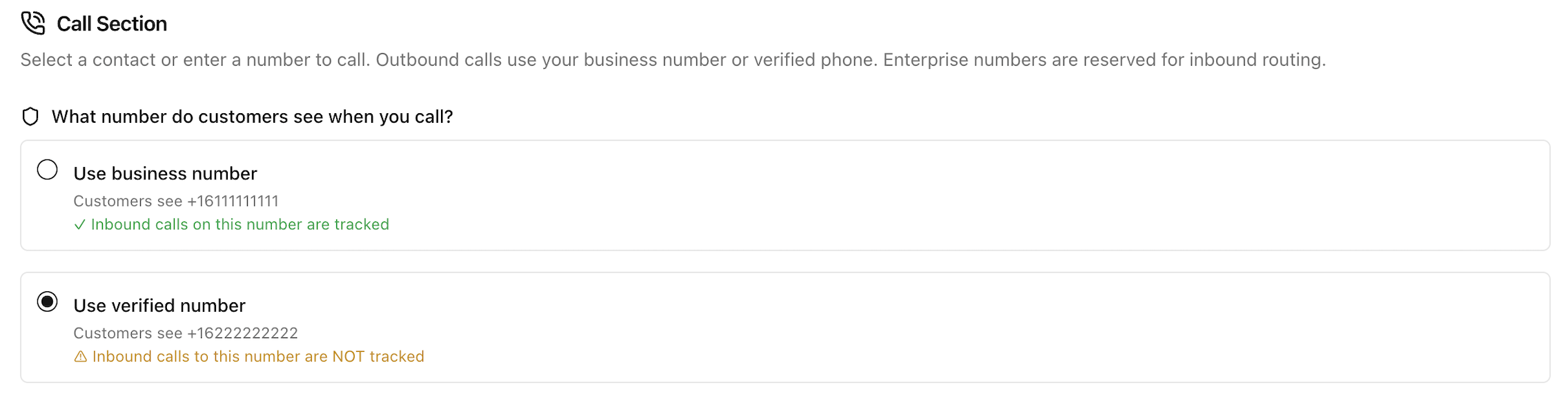
| Option | What the Customer Sees | Are Incoming Return Calls Tracked? |
|---|---|---|
| Use Business Number | Your Arkios-provisioned business number | Yes — return calls come through Arkios and are tracked automatically. |
| Use Verified Number | Your personal phone number | No — if the customer calls this number back, the call goes directly to your phone and Arkios can't track it. |
Recommendation: Use your business number whenever you can. That way, if the customer calls you back, the return call is routed through Arkios and gets recorded and tracked.
Step 3: Place the Call
Click the call button. What happens next depends on your call mode (which you chose during onboarding — you can change it anytime in Phone Settings).
If Your Call Mode Is "Browser"
- The call connects directly in your browser.
- Your browser will ask for microphone access — you need to allow it.
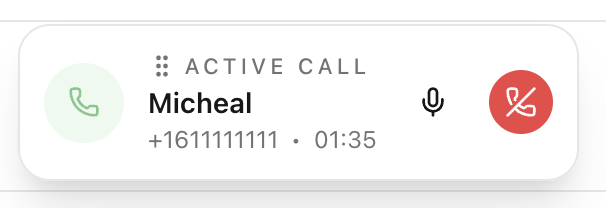
- An active call widget appears on screen with:
- Mute / Unmute button
- Hang Up button
- Live call timer showing how long you've been on the call
- When someone calls your business number, a ringing dialog pops up in your browser.
- Call tokens refresh automatically in the background (roughly every 45 minutes), so you don't need to worry about sessions expiring.
If Your Call Mode Is "Phone"
- Your registered physical phone rings first.
- Once you pick up, the system connects you to the destination number.
- The call goes through Arkios, so it's recorded and tracked.
If Your Call Mode Is "Both"
- Incoming calls ring your phone and your browser at the same time. Answer from whichever is more convenient.
- Outgoing calls follow the same flow as phone mode, with browser as a fallback.
Before You Can Call
Make sure you have the following:
- At least one number set up: a provisioned business number or a verified personal phone.
- A contact selected or a phone number entered.
- No other call currently in progress (you can only have one active call at a time).
- Enough call credits to cover the call. If you're out of credits, you won't be able to place calls.
Last updated: April 11, 2026